# Linux

# Commandes General


# Lister les services

Sur CentOS/RedHat Tous :

```bash
systemctl list-units --type service --all
```

En cours :

```bash
systemctl list-units --type service --all | grep running
```

Sur Debian :

```bash
service --status-all
```

# Quelques commandes

Commandes simples :

\\ : utilisation des apostrophes

Lire les fichiers : <span style="color: rgb(230, 126, 35);">cat, more, less</span>

<span style="color: rgb(230, 126, 35);">nmtui</span> : modifier connexion via interface graphique  
<span style="color: rgb(230, 126, 35);">ctrl + alt + f1 ou f2 </span>: changer de terminal  
<span style="color: rgb(230, 126, 35);">\#</span> : utilisation compte root  
<span style="color: rgb(230, 126, 35);">$</span> : utilisation autre utilisateur  
<span style="color: rgb(230, 126, 35);">~</span> : répertoire de connexion  
<span style="color: rgb(230, 126, 35);">ctrl + s </span>: Pause du terminal  
<span style="color: rgb(230, 126, 35);">ctrl + q </span>: Reprendre le terminal  
<span style="color: rgb(230, 126, 35);">ctrl + w </span>: Effacer le mot  
<span style="color: rgb(230, 126, 35);">ctrl + i </span>: efface l'affichage  
<span style="color: rgb(230, 126, 35);">ctrl + u </span>: efface ligne entière  
<span style="color: rgb(230, 126, 35);">man -k </span>: recherche pages du manuel associés à un mot

<span style="color: rgb(230, 126, 35);">who</span> : liste utilisateurs connectés  
<span style="color: rgb(230, 126, 35);">whoami </span>: affiche utilisateur actuel connecté  
<span style="color: rgb(230, 126, 35);">finger </span>: affiche informations plus précises sur l'utilisateur connecté  
<span style="color: rgb(230, 126, 35);">pwd</span> : affiche répertoire courant  
<span style="color: rgb(230, 126, 35);">Cd ~</span> =&gt; renvoie dans le répertoire /home personnel.

  
<span style="color: rgb(230, 126, 35);">/bin/bash :</span> Shell par défaut | Boîte de l'invite de commande.  
<span style="color: rgb(230, 126, 35);">passwd</span> : modifier mot de passe | commandes liés au mot de passe  
<span style="color: rgb(230, 126, 35);">passwd -l :</span> verrouiller compte  
<span style="color: rgb(230, 126, 35);">passwd -u</span> : déverrouiller compte  
<span style="color: rgb(230, 126, 35);">passwd -d</span> : désactiver saisie du mot de passe pour un compte

<span style="color: rgb(230, 126, 35);">wc </span>: compter le nombre de lignes, mots, caractères contenus dans un fichier.  
<span style="color: rgb(230, 126, 35);">wc -l -w -c </span>(line, word, caracter)

<span style="color: rgb(230, 126, 35);">env</span> : affiche varaibles d'environnement  
<span style="color: rgb(230, 126, 35);">echo</span> : afficher valeur d'environnement  
<span style="color: rgb(230, 126, 35);">date</span> : affiche date  
<span style="color: rgb(230, 126, 35);">exit</span> or <span style="color: rgb(230, 126, 35);">logout </span>: déconnecter utilisateur  
<span style="color: rgb(230, 126, 35);">which \[commande\]</span> : affiche le chemin complet d'une commande

Changement de valeur d'une variable d'environnement  
<span style="color: rgb(230, 126, 35);">export PS1=’\[\\u@\\h \\W \\t\]$’</span>  
Export valide la nouvelle variable.  
<span style="color: rgb(230, 126, 35);">$TMOUT</span> : Variable qui déconnectee automatiquement au bout d'un temps défini.  
La commande export ne marche que pour la session en cours. (temporaire)

==Recherche==  
<span style="color: rgb(230, 126, 35);">\* </span>: substitue le caractères générique ? par n'impoorte quel caractère.  
<span style="color: rgb(230, 126, 35);">\[\] </span>: remplace le caractère par un des caractères donnés. Exemple  
<span style="color: rgb(230, 126, 35);">\[abc\] </span>remplace le caractère par a ou b ou c  
<span style="color: rgb(230, 126, 35);">\[f-z\] :</span> caractère entre f et z. Respect de la casse.  
exemple : <span style="color: rgb(230, 126, 35);">ls \[fr\]?tab</span>  
<span style="color: rgb(230, 126, 35);">! </span>: cherche les caractères ne se trouvant pas entre les  
<span style="color: rgb(230, 126, 35);">{} </span>: Cherche tous les noms de fichiers commençant par une chaîne de caractères au lieu  
d'un seul caractère.  
Avec des doubles apostrophes, les caractères spéciaux sont interprétés mais pas le \* .

<span style="color: rgb(230, 126, 35);">alias </span>: remplace une ligne de commandes complexe par son alias.  
pour l'avoir de manière permanente pour tous les utilisateurs, l'ajouter dans .bashrc  
qui se trouve dans le dossier de connexion de l'utilisateur.

<span style="color: rgb(230, 126, 35);">unalias -a nom\_alias</span> : supprimer alias  
<span style="color: rgb(230, 126, 35);">type</span> : affiche les informations à propos d'une commande et son interprétation.  
<span style="color: rgb(230, 126, 35);">cat </span>: sert à lire un fichier  
<span style="color: rgb(230, 126, 35);">whereis </span>: localiser rapidement une commande externe ainsi que les fichiers  
aide et sources associées.

<span style="color: rgb(230, 126, 35);">source .bash\_profile </span>: recharger le fichier profile sans se déconnecter.  
<span style="color: rgb(230, 126, 35);">set -o </span>: affiche l'état (actif ou inactif) des options  
<span style="color: rgb(230, 126, 35);">set -o \[nom\_option\]</span> : activer  
<span style="color: rgb(230, 126, 35);">set +o \[nom\_option\] </span>: désactiver

Tous les fichiers qui commencent par p ou se terminent par d :  
<span style="color: rgb(230, 126, 35);">ls -d {p\*,\*.d}</span>

==Avancé==  
processus associé à des descripteurs de fichiers.  
point d'entrée = paramètre rentré sur le clavier  
sortie = résultat affiché à l'écran  
Entrée (0) =&gt; Processus =&gt; Sortie (1)  
||  
Erreur (2)

<span style="color: rgb(230, 126, 35);">&lt; </span>: rediriger l'entrée  
<span style="color: rgb(230, 126, 35);">&gt;</span> : rediriger la sortie vers un fichier  
<span style="color: rgb(230, 126, 35);">&gt;&gt;</span> : permet d'ajouter dans un fichier existant  
<span style="color: rgb(230, 126, 35);">2&gt;</span> : redirection de l'erreur standard  
<span style="color: rgb(230, 126, 35);">n&gt;&amp;m</span> : avoir une sortie + erreur dans un seul fichierr  
où n est numéro du descripteur à rediriger et m : numéro de celui vers  
lequel il faut renvoyer les données . exemple : Ou &gt; ficsortie 1&gt;&amp;2

<span style="color: rgb(230, 126, 35);">/dev/null </span>: puit sans fond. Tout ce qui est envoyé est supprimé du système  
exemple : ps -ef &gt; /tmp/test  
<span style="color: rgb(230, 126, 35);">ls bin dev bleu &gt; ficout 2&gt;&gt; ficerr2</span>

<span style="color: rgb(230, 126, 35);">/dev </span>: fichiers qui sont des pointeurs vers des périphériques  
<span style="color: rgb(230, 126, 35);">touch </span>: permet de changer l'heure du fichier et créé un fichier vide.

tubes (pipe) : <span style="color: rgb(230, 126, 35);">|</span>  
<span style="color: rgb(230, 126, 35);">tee </span>: lis l'entrée, génèree le fichier et effectue une copie sur la sortie intermédiaire  
<span style="color: rgb(230, 126, 35);">grep</span> : filtre et garde que ce qui contient après ce paramètre

<span style="color: rgb(230, 126, 35);">su</span> : switch user | changer d'utilisateur  
<span style="color: rgb(230, 126, 35);">su - \[nom\_user\] </span>: tirer permet de garder l'environnement de l'utilisateur actuel  
Lancer une commande en tant qu'utilisateur test :  
<span style="color: rgb(230, 126, 35);">su - test -c "ps -ef"</span>  
chaque commande lancé via su crée une exécution en shell.

<span style="color: rgb(230, 126, 35);">sudo</span> : exécution de commandes en tant que sans élévation de compte /etc/sudoers

  
\[Commandes Avancées\]  
<span style="color: rgb(230, 126, 35);">Dmesg </span>: verbosité du noyau. Les informations sur des périphériques attachés ou détachés apparaissent dedans.  
<span style="color: rgb(230, 126, 35);">Fdisk –l </span>: commandes de table de partition  
<span style="color: rgb(230, 126, 35);">mount</span> : monter le périphérique à un répertoire. | affiche la liste des montages  
<span style="color: rgb(230, 126, 35);">df</span> : fourni la quantité d'espace occupé des systèmes de fichiers.  
<span style="color: rgb(230, 126, 35);">mkfs -t ext4 /dev/sdx</span> : formater au format ext4

editeurs de texte : <span style="color: rgb(230, 126, 35);">vi, nano, emacs</span>  
<span style="color: rgb(230, 126, 35);">cd -</span> =&gt; renvoie dans le répertoire précédent  
<span style="color: rgb(230, 126, 35);">file</span> : permet de déterminer le type d'un fichier  
<span style="color: rgb(230, 126, 35);">stat</span> : indique les informations du bloc où est stocké le fichier  
<span style="color: rgb(230, 126, 35);">mkdir -p</span> : crée arborescence du répertoire

<span style="color: rgb(230, 126, 35);">cp -R</span> : Copier contenu d'un répertoire avec les droits associés.  
<span style="color: rgb(230, 126, 35);">mv</span> : renommer ou déplacer fichiers  
<span style="color: rgb(230, 126, 35);">rename</span> : renommer fichier

<span style="color: rgb(45, 194, 107);">find : rechercher des fichiers</span>  
<span style="color: rgb(45, 194, 107);">exemple : find / -name</span>  
<span style="color: rgb(230, 126, 35);">find -size +1M</span> : fichiers de plus d'un megaoctet  
<span style="color: rgb(230, 126, 35);">find -mtime</span> : heure de modification

<span style="color: rgb(45, 194, 107);">Grep permet de filtrer des lignes.</span>  
<span style="color: rgb(230, 126, 35);">Grep –i </span>=&gt; prend en compte les minuscules et majuscules  
<span style="color: rgb(230, 126, 35);">Grep –l </span>=&gt; affiche uniquement les noms des fichiers possédant des lignes qui correspondent à la valeur donnée.

<span style="color: rgb(230, 126, 35);">Cut </span>=&gt; supprimer une partie de chaque ligne d’un fichier  
<span style="color: rgb(230, 126, 35);">Sort </span>=&gt; trier les lignes d’un fichier.  
<span style="color: rgb(230, 126, 35);">Head</span> =&gt; consulter le début d’un fichier  
<span style="color: rgb(230, 126, 35);">Tail </span>=&gt; consulter la fin d’un fichier.

La commande watch permet d’exécuter un programme périodiquement en affichant le résultat à l’écran

<span style="color: rgb(230, 126, 35);">ln </span>: lien dur (hard link) -&gt; seconde entrée pointant vers le même inode  
<span style="color: rgb(230, 126, 35);">ln -s</span> : lien symbolique -&gt; raccourci

# MAIL

Pour voir la file d'attente :

```bash
mailq
```

Pour le journal des logs :

```bash
journalctl -u postfix
```

Pour forcer le renvoi des mails bloqués dans la file d'attente :

```bash
postfix flush
```

Pour tester l'envoi :

```bash
Mail email@addresse.com
```

et suivre les étape

Pour reload le service

```bash
postfix reload
```

# Lancer une commande active même après la déconnexion

Précéder la commande par la commande <span style="color: rgb(230, 126, 35);">nohup</span>  
S'il est nécessaire de récupérer la console, terminer la ligne avec une esperluette <span style="color: rgb(230, 126, 35);">&amp;</span> exemple :

```bash
nohup  wget ftp://...../Fedora-8-i386-rescuecd.iso &
```

La sortie de la commande est loggué dans un fichier nohup.out  
il est possible de consulter soit en direct en lançant immédiatement

```bash
tail -f nohup.out
```

Soit après coup :

```bash
less nohup.out
```

# NTP

Pour voir l'heure et le status du service

```bash
/etc/init.d/hwclock.sh show
```

Pour checker l'heure du matériel :

```bash
date; hwclock
```

Pour synchro :

```bash
hwclock --systohc
```

Pour debugguer :

```bash
hwclock --systohc --debug
```

# Drop RAM SWAP CPU & MEM

<span style="color: rgb(126, 140, 141);">lister les process qui occupe le swap : </span>

```bash
for file in /proc/*/status ; do awk '/VmSwap|Name/{printf $2 " " $3}END{ print ""}' $file; done | sort -k 2 -n -r | less
```

<span style="color: rgb(230, 126, 35);"><span style="color: rgb(45, 194, 107);">DROP mémoire cache + voir résultat </span></span>

```bash
free -h && sudo sysctl vm.drop_caches=3 && free –h
```

<span style="color: rgb(230, 126, 35);"><span style="color: rgb(45, 194, 107);">Relancer le swap</span></span>

```bash
sudo swapoff –a && sudo swapon -a
```

#### **Problème lié au swap**

Déplacer le cache de Swap vers la mémoire si elle est pas trop sollicitée en exécutant la commande :

```bash
swapoff -a
```

changer le swappiness à 10 au lieu de 40 (valeur recommandée sur postgre) ce qui a permis de soulager le swap  
il ne sera sollicité que la mémoire passe en full (ce qui n'était pas le cas avant ce changement, le swap se remplit fréquemment même si la RAM est vide )

  
Pour modifier la valeur sans redémarrer le système d'exploitation, exécutez la commande suivante :

```bash
sysctl -w vm.swappiness=10
```

Pour modifier la valeur temporairement (après le redémarrage la valeur sera sautée)

```bash
htop
```

Pour reloader la config :

```bash
sysctl --system
```

une fois le swap vidé passer la commande suivante pour réactiver le swap :

```bash
swapon -a
```

La config swappiness se trouve :   
<span style="color: rgb(230, 126, 35);">/etc/sysctl.conf  
  
</span>

<span style="color: rgb(149, 165, 166);">droper cache mem et swap autrement : </span>

```bash
sync; echo 3 > /proc/sys/vm/drop_caches
```

[![image.png](https://cavallone.fr/uploads/images/gallery/2024-11/scaled-1680-/lFBYlh5gaCvAGJHl-image.png)](https://cavallone.fr/uploads/images/gallery/2024-11/lFBYlh5gaCvAGJHl-image.png)

trier le CPU ou la mémoire sur la machine :   
<span style="color: rgb(230, 126, 35);">top ou htop</span>

commande avancée pour trier la mémoire:

```bash
ps -eo size,pid,user,command --sort -size |    awk '{ hr=$1/1024 u; printf("%13.2f Mb ",hr) } { for ( x=4 ; x<=NF ; x++ ) { printf("%s ",$x) } print "" }' |    cut -d "" -f2 | cut -d "-" -f1
```

[![image.png](https://cavallone.fr/uploads/images/gallery/2024-11/scaled-1680-/p73behMJXXpG1apj-image.png)](https://cavallone.fr/uploads/images/gallery/2024-11/p73behMJXXpG1apj-image.png)

autres commande pour CPU et mem triez par top:

```bash
ps -eo pid,user,comm,%mem --sort=-%mem | head -n 6
```

```bash
ps -eo pid,user,comm,%mem --sort=-%cpu | head -n 6
```

<span style="color: rgb(126, 140, 141);">Vous pouvez faire des teste de stress sur une machine pour voir comment elle réagit via :</span>

```bash
Yum install stress
```

<span style="color: rgb(230, 126, 35);">Commande stress mémoire : </span>

```bash
stress --vm 1 --vm-bytes 1G --timeout 30s
```

# Astuces Cron

Vérifier la crontab système :

```bash
cat /etc/crontab
```

Lister les crontab de tous les utilisateurs

```bash
for user in $(cut -f1 -d: /etc/passwd); do echo $user; crontab -u $user -l; done
```

Lister les crontab d'un user spécifique

```bash
crontab -l -u "user"
```

<span style="color: rgb(230, 126, 35);"><span style="color: rgb(45, 194, 107);">CRONTAB</span>  
<span style="color: rgb(45, 194, 107);">mm hh jj MMM JJJ tâche</span>  
</span>\# Example of job definition:  
\# .---------------- minute (0 - 59)  
\# | .------------- hour (0 - 23)  
\# | | .---------- day of month (1 - 31)  
\# | | | .------- month (1 - 12) OR jan,feb,mar,apr ...  
\# | | | | .---- day of week (0 - 6) (Sunday=0, Monday=1, and so on)  
\# | | | | |  
\# \* \* \* \* \* user-name command-to-be-executed<span style="color: rgb(230, 126, 35);">  
</span>

crontab -l  
ls -al /etc/cron.\*  
cat /etc/cron.d/\* | grep "votre recherche"

Valider la planification avec crontab guru :   
[https://crontab.guru](https://crontab.guru)

Aide à la création de la cron:  
[https://crontab-generator.org/](https://crontab-generator.org/)

# Extraction link web page

[![image.png](https://cavallone.fr/uploads/images/gallery/2024-10/scaled-1680-/OEDBmIykIQV84pw2-image.png)](https://cavallone.fr/uploads/images/gallery/2024-10/OEDBmIykIQV84pw2-image.png)

[![image.png](https://cavallone.fr/uploads/images/gallery/2024-10/scaled-1680-/bEsgI7iJWSmi2d7f-image.png)](https://cavallone.fr/uploads/images/gallery/2024-10/bEsgI7iJWSmi2d7f-image.png)

# Rechercher des fichier : find/locate/size

<span style="color: rgb(126, 140, 141);">• Rechercher tous les fichiers avec l'extension .txt dans le répertoire courant :</span>

```bash
find . -name "*.txt"
```

<span style="color: rgb(126, 140, 141);">• Rechercher tous les fichiers avec l'extension .txt dans tous les sous-répertoires du répertoire courant :</span>

```bash
find . -name "*.txt" -type f -exec ls -lh {} \;
```

<span style="color: rgb(126, 140, 141);">• Rechercher tous les fichiers dont la taille est supérieure à 100 Mo :</span>

```bash
find . -size +100M
```

<span style="color: rgb(126, 140, 141);">• Rechercher tous les fichiers modifiés au cours des 7 derniers jours :</span>

```bash
find . -mtime -7
```

<span style="color: rgb(230, 126, 35);"><span style="color: rgb(126, 140, 141);">Pour utiliser la commande locate, vous devez d'abord vous assurer que la base de données locate est à jour. Pour ce faire, exécutez la commande suivante :</span>  
</span>

```bash
sudo updatedb
```

<span style="color: rgb(230, 126, 35);"><span style="color: rgb(126, 140, 141);">Une fois la base de données locate à jour, vous pouvez commencer à rechercher des fichiers. La syntaxe de base de la commande locate est la suivante :</span>  
</span>

```bash
locate [options] nom_de_fichier
```

<span style="color: rgb(230, 126, 35);"><span style="color: rgb(126, 140, 141);">Par exemple, pour rechercher tous les fichiers avec l'extension .txt, vous pouvez exécuter la commande suivante :</span>  
</span>

```bash
locate *.txt
```

<span style="color: rgb(126, 140, 141);">Recherche dans l'historique des commande taper sur le shell:</span>

```bash
CRTL + R : 
```

# LDAP


# Création Docker OPENLDAP image OSIXIA / GITHUB avec réplication

[![image.png](https://cavallone.fr/uploads/images/gallery/2024-10/scaled-1680-/SGJQz2AWrUC1D2Ek-image.png)](https://cavallone.fr/uploads/images/gallery/2024-10/SGJQz2AWrUC1D2Ek-image.png)

creation fake Docker sur le serveur : CREATION LDAP TEST SANS REPLICATION POUR TESTER un LDIF.

```bash
LDAP_CID=$(docker run --restart always --name ldap-test --hostname "hostname" --env LDAP_BASE_DN="DC" --env LDAP_ORGANISATION="NOM" --env LDAP_DOMAIN="domaine" --env LDAP_ADMIN_PASSWORD=PASSWORD --env LDAP_TLS=false -v /data2/ldap:/var/lib/ldap -v /data2/slapd.d:/etc/ldap/slapd.d -p 1389:389 --detach osixia/openldap:1.5.0)
```

\########################################################################################################################################

   
creation Vrai Docker sur srv 1 avec replication et sécurité certificat ect.. = c'est une commande entiere a cp

```bash
LDAP_CID=$(docker run --restart always --name ldap --hostname "hostname" --env LDAP_BASE_DN="DC" --env LDAP_ORGANISATION="NOM" --env LDAP_DOMAIN="domaine"  --env LDAP_ADMIN_PASSWORD=PASSWORD  --env LDAP_TLS=true --env LDAP_TLS_VERIFY_CLIENT=never --env LDAP_REPLICATION=true --env LDAP_REPLICATION_HOSTS="#PYTHON2BASH:['ldap://noomduldap','ldap://noomduldap']" --env LDAP_TLS_CRT_FILENAME=cert.crt --env LDAP_TLS_KEY_FILENAME=cert.key --env LDAP_TLS_CA_CRT_FILENAME=ca.crt -v /data/ldap:/var/lib/ldap -v /data/slapd.d:/etc/ldap/slapd.d --volume /etc/pki/openldap/pprod-2:/container/service/slapd/assets/certs -p 389:389 -p 636:636 --detach osixia/openldap:1.5.0)
```


creation Vrai Docker sur srv 2 avec replication sur le 1 et sécurité certificat ect.. = c'est une commande entiere a cp

```bash
LDAP_CID=$(docker run --restart always --name ldap --hostname "hostname" --env LDAP_BASE_DN="DC" --env LDAP_ORGANISATION="NOM" --env LDAP_DOMAIN="domaine"  --env LDAP_ADMIN_PASSWORD=PASSWORD --env LDAP_TLS=true --env LDAP_TLS_VERIFY_CLIENT=never --env LDAP_REPLICATION=true --env LDAP_REPLICATION_HOSTS="#PYTHON2BASH:['ldap://noomduldap','ldap://noomduldap']" --env LDAP_TLS_CRT_FILENAME=cert.crt  --env LDAP_TLS_KEY_FILENAME=cert.key --env LDAP_TLS_CA_CRT_FILENAME=ca.crt  -v /data/ldap:/var/lib/ldap -v /data/slapd.d:/etc/ldap/slapd.d --volume /etc/pki/openldap/pprod-2:/container/service/slapd/assets/certs -p 389:389 -p 636:636 --detach osixia/openldap:1.5.0)
```

  
Suppresion du docker et des data docker, vite fait et efficace, vous pouvez après recréer le ldap dockeriser avec les commande du dessus :

[![image.png](https://cavallone.fr/uploads/images/gallery/2024-10/scaled-1680-/mdPkFagKXphEl3us-image.png)](https://cavallone.fr/uploads/images/gallery/2024-10/mdPkFagKXphEl3us-image.png)

  
\########################################################################################################################################

Outils en interface sur windows qui aide a rentrer des ldif ou troublehsoot des compte ect …

[![image.png](https://cavallone.fr/uploads/images/gallery/2024-10/scaled-1680-/VaFwoIGzU40oOP22-image.png)](https://cavallone.fr/uploads/images/gallery/2024-10/VaFwoIGzU40oOP22-image.png)

commande test ldap et autres voir si il répond.

<span style="color: rgb(230, 126, 35);">ldapsearch -x -H [ldap://](ldap://noomduldap)<span style="color: rgb(45, 194, 107);">[noomduldap](ldap://noomduldap) </span> -b <span style="color: rgb(45, 194, 107);">dc=,dc=</span> -D <span style="color: rgb(45, 194, 107);">"cn=,dc=,dc="</span> -W</span>  
<span style="color: rgb(230, 126, 35);">ldappasswd -D <span style="color: rgb(45, 194, 107);">"cn=,dc=,dc="</span> -W -S <span style="color: rgb(45, 194, 107);">"uid=mail@domaine.com,ou=,ou=,dc=,dc="</span></span>  
<span style="color: rgb(230, 126, 35);">ldapwhoami -x -D <span style="color: rgb(45, 194, 107);">"uid=mail@domaine.com,ou=,ou=,dc=,dc="</span> -W -v</span>  
<span style="color: rgb(230, 126, 35);">ldapsearch -x -H [ldap://](ldap://noomduldap)<span style="color: rgb(45, 194, 107);">[noomduldap](ldap://noomduldap) </span>-b <span style="color: rgb(45, 194, 107);">dc=,dc=</span> -D <span style="color: rgb(45, 194, 107);">"cn=,dc=,dc=" </span>-W</span>  
<span style="color: rgb(230, 126, 35);">ldapwhoami -x -D <span style="color: rgb(45, 194, 107);">"uid=mail@domaine.com,ou=,ou=,dc=,dc="</span> -W -v</span>  
<span style="color: rgb(230, 126, 35);">ldapwhoami -x -D <span style="color: rgb(45, 194, 107);">"uid=,ou=,ou=,dc=,dc=" </span>-W –v</span>

<span style="color: rgb(230, 126, 35);">grep -5ni 'test.test,' LdapExt-Prod-FINAL.ldif </span> = =<span style="color: rgb(224, 62, 45);"> pour rechercher les user ou erreur dans un contexte chaine de caractère sur du dn ou uid</span>

  
commande test ldap et autres voir si il répond.

[![image.png](https://cavallone.fr/uploads/images/gallery/2024-10/scaled-1680-/5kBwC8Eu9Kk29ipz-image.png)](https://cavallone.fr/uploads/images/gallery/2024-10/5kBwC8Eu9Kk29ipz-image.png)

  
Debug docker logs :

[![image.png](https://cavallone.fr/uploads/images/gallery/2024-10/scaled-1680-/QZYm0qSvy3AWVdbU-image.png)](https://cavallone.fr/uploads/images/gallery/2024-10/QZYm0qSvy3AWVdbU-image.png)

Créer un ldif :

```bash
ldapsearch -x -H ldap://localhost -D "cn=admin,dc=example,dc=com" -w admin_password -b "dc=example,dc=com" "(objectClass=*)" > backup.ldif
```

# Création OpenLdap

Install package openldap, on utilise yum pour éviter les problèmes de dépendances

```bash
yum -y install openldap* migrationtools
```

[![image.png](https://cavallone.fr/uploads/images/gallery/2024-10/scaled-1680-/6pFWBPGhg6aFUvFp-image.png)](https://cavallone.fr/uploads/images/gallery/2024-10/6pFWBPGhg6aFUvFp-image.png)

Une fois installé, créé le Password admin du ldap

```bash
slappaswd
```

[![image.png](https://cavallone.fr/uploads/images/gallery/2024-10/scaled-1680-/nVO3YYlQsGhYUBU2-image.png)](https://cavallone.fr/uploads/images/gallery/2024-10/nVO3YYlQsGhYUBU2-image.png)

Copier le SHA pour l'intégrer plus tard dans le fichier de configuration  
Accéder au dossier config du ldap et modifier le fichier olcDatabase={2}hdb.ldif

[![image.png](https://cavallone.fr/uploads/images/gallery/2024-10/scaled-1680-/mX2nMVNaVkEcs8zC-image.png)](https://cavallone.fr/uploads/images/gallery/2024-10/mX2nMVNaVkEcs8zC-image.png)

Modifier les paramètres "olcSuffix" et "olcRootDN" selon votre domaine et ajouter "olcRootPW"[![image.png](https://cavallone.fr/uploads/images/gallery/2024-10/scaled-1680-/KSv6FAZmVwRVYopm-image.png)](https://cavallone.fr/uploads/images/gallery/2024-10/KSv6FAZmVwRVYopm-image.png)

Ajout des droits de monitor au compte en modifiant le fichier olcDatabase={1}monitor.ldif :[![image.png](https://cavallone.fr/uploads/images/gallery/2024-10/scaled-1680-/sc8SIODnHtPycGMq-image.png)](https://cavallone.fr/uploads/images/gallery/2024-10/sc8SIODnHtPycGMq-image.png)

Modifier les paramètres "olcAccess" de votre domaine et ajouter[![image.png](https://cavallone.fr/uploads/images/gallery/2024-10/scaled-1680-/V3qo37RaCQsIQA22-image.png)](https://cavallone.fr/uploads/images/gallery/2024-10/V3qo37RaCQsIQA22-image.png)

Verifier la configuration avec la commande suivante

```bash
slaptest -u
```

[![image.png](https://cavallone.fr/uploads/images/gallery/2024-10/scaled-1680-/O553EAckWXHMNXoX-image.png)](https://cavallone.fr/uploads/images/gallery/2024-10/O553EAckWXHMNXoX-image.png)

<p class="callout info"><span style="color: rgb(224, 62, 45);">Nous pouvons ignorer les erreurs checksum</span></p>

Démarrer le service, l'ajouter au démarrage automatique et vérifier le démarrage[![image.png](https://cavallone.fr/uploads/images/gallery/2024-10/scaled-1680-/0APwR6uCvu9Tdhcz-image.png)](https://cavallone.fr/uploads/images/gallery/2024-10/0APwR6uCvu9Tdhcz-image.png)  

  
Copier le sample de la base et attribuer les droits :  
[![image.png](https://cavallone.fr/uploads/images/gallery/2024-10/scaled-1680-/GHcbxl0ictEymSfO-image.png)](https://cavallone.fr/uploads/images/gallery/2024-10/GHcbxl0ictEymSfO-image.png)

Créé les schéma pour le ldap :

[![image.png](https://cavallone.fr/uploads/images/gallery/2024-10/scaled-1680-/wqWswXOl5DSi43dl-image.png)](https://cavallone.fr/uploads/images/gallery/2024-10/wqWswXOl5DSi43dl-image.png)

[![image.png](https://cavallone.fr/uploads/images/gallery/2024-10/scaled-1680-/nwKxrIaG7NBysFDE-image.png)](https://cavallone.fr/uploads/images/gallery/2024-10/nwKxrIaG7NBysFDE-image.png)![image.png](https://cavallone.fr/uploads/images/gallery/2024-10/scaled-1680-/YYje1jM5kxVffr7d-image.png)

# Passage ldif, changement des information

<span style="color: rgb(241, 196, 15);">Passage d'un ldif qui parvient d'une autre entité, il faut passer ce script pour retirer les informations du fichier ldif pour ne pas avoir l'erreur <span style="color: rgb(224, 62, 45);">**CONSTRAINTE 61** </span></span>

```bash
#SCRIPT 
#!/bin/bash
echo "inupt file LdapExt-Prod.ldif "cat $1 | grep --binary-files=text -vi structuralObjectClass > tmp1.ldif
cat tmp1.ldif | grep --binary-files=text -vi entryUUID > tmp2.ldif
cat tmp2.ldif | grep --binary-files=text -vi creatorsName > tmp3.ldif
cat tmp3.ldif | grep --binary-files=text -vi createTimestamp > tmp4.ldif
cat tmp4.ldif | grep --binary-files=text -vi entryCSN > tmp5.ldif
cat tmp5.ldif | grep --binary-files=text -vi modifiersName > tmp6.ldif
cat tmp6.ldif | grep --binary-files=text -vi modifiersName > tmp7.ldif
cat tmp7.ldif | grep --binary-files=text -vi modifyTimestamp > tmp8.ldif
cat tmp8.ldif | grep --binary-files=text -vi contextCSN > $1-final.ldif
echo "conversion en cours ...\n ...\n...."
echo " fin Conversion , OutPUT file : import-v2.ldif  "
# + suppression de l'ou et de l'admin
```

<span style="color: rgb(241, 196, 15);"><span style="color: rgb(224, 62, 45);">  
</span></span>

**<span style="color: rgb(224, 62, 45);">Il faut aussi ouvrir le ldif et retirer les 2 premieres description ADMIN + OU à la fin du script .</span>**[![image.png](https://cavallone.fr/uploads/images/gallery/2024-10/scaled-1680-/1FUfo6i5MUpNtmxN-image.png)](https://cavallone.fr/uploads/images/gallery/2024-10/1FUfo6i5MUpNtmxN-image.png)

# OpenLdap commande

1. **`ldapwhoami -x -D "uid=*** -W -v`**
    
    
    - <span style="color: rgb(45, 194, 107);">Cette commande permet de s'authentifier avec l'utilisateur spécifié et affiche l'identité LDAP de l'utilisateur actuel (fonction `whoami`).  
          
        </span>
2. **`ldapsearch -x -LLL -D "cn=admin,dc=***,dc=***" -W -b "ou=extern,ou=users,dc=***,dc=***" "(uid=*)" | grep dn`**
    
    
    - <span style="color: rgb(45, 194, 107);">Effectue une recherche dans l'annuaire LDAP en filtrant sur l'attribut `uid` et extrait les entrées de type `dn` (distinguished name).  
          
        </span>
3. **`cat comptes_geode_extern.ldif | grep -5ni granet`**
    
    
    - <span style="color: rgb(45, 194, 107);">Affiche les 5 lignes avant et après chaque occurrence de "granet" dans le fichier `comptes_geode_extern.ldif`.  
          
        </span>
4. **`ldapadd -x -D "cn=admin,dc=***,dc=***" -W -f comptes_geode_extern.ldif`**
    
    
    - <span style="color: rgb(45, 194, 107);">Ajoute des entrées LDAP à partir du fichier `comptes_geode_extern.ldif`.  
        </span>
5. **`ldapdelete -x -r "ou=users,dc=***,dc=***" -W -D "cn=admin,dc=***,dc=***"`**
    
    
    - <span style="color: rgb(45, 194, 107);">Supprime des entrées récursivement dans l'OU `users` de l'annuaire LDAP.  
          
        </span>
6. **`ldapsearch -x -LLL -D "cn=admin,dc=***,dc=***" -W -b "cn=admin,dc=***,dc=***" "(objectClass=*)"`**
    
    
    - <span style="color: rgb(45, 194, 107);">Effectue une recherche LDAP sur l'OU admin et récupère toutes les entrées de ce conteneur.  
          
        </span>
7. **`ldapwhoami -x -D "cn=admin-byzance,dc=***,dc=***" -W -H ldap://***`**
    
    
    - <span style="color: rgb(45, 194, 107);">S'authentifie sur un serveur LDAP distant et affiche l'identité LDAP de l'utilisateur.  
          
        </span>
8. **`ldapsearch -x -H ldap://*** -D "cn=admin,dc=***,dc=***" -W -b "dc=***,dc=***" "(objectClass=*)" > backup-jimmy-test.ldif`**
    
    
    - <span style="color: rgb(45, 194, 107);">Effectue une recherche sur le serveur LDAP distant et exporte les résultats dans un fichier `backup-jimmy-test.ldif`.  
          
        </span>
9. **`ldapsearch -x -H ldap://*** -D "cn=admin,dc=***,dc=***" -W -b "ou=vm,ou=users,dc=***,dc=***" "(objectClass=*)" > ou-vm.ldif`**
    
    
    - <span style="color: rgb(45, 194, 107);">Recherche les objets dans l'OU `vm` de l'annuaire LDAP distant et exporte les résultats dans le fichier OU-VM.ldif.  
          
        </span>
10. **`ldapsearch -x -H ldap://*** -D "cn=admin,dc=***,dc=***" -W -b "ou=byzance,ou=users,dc=***,dc=***" "(objectClass=*)" | grep -c "^dn: "`**
    
    
    - <span style="color: rgb(45, 194, 107);">Recherche les objets dans l'OU `byzance` et compte le nombre d'entrées dans le résultat.  
          
        </span>
11. **`grep -c "^dn: uid=" OU-FULL-BACKUP-PROD/full-backup-prod-09-09-2024.ldif > directement sur un file.ldif`**
    
    
    - <span style="color: rgb(45, 194, 107);">Recherche dans un fichier LDIF et compte le nombre d'entrées de type `dn` pour l'attribut `uid`.</span>

# HA / CLUSTER


# Keepalived HA

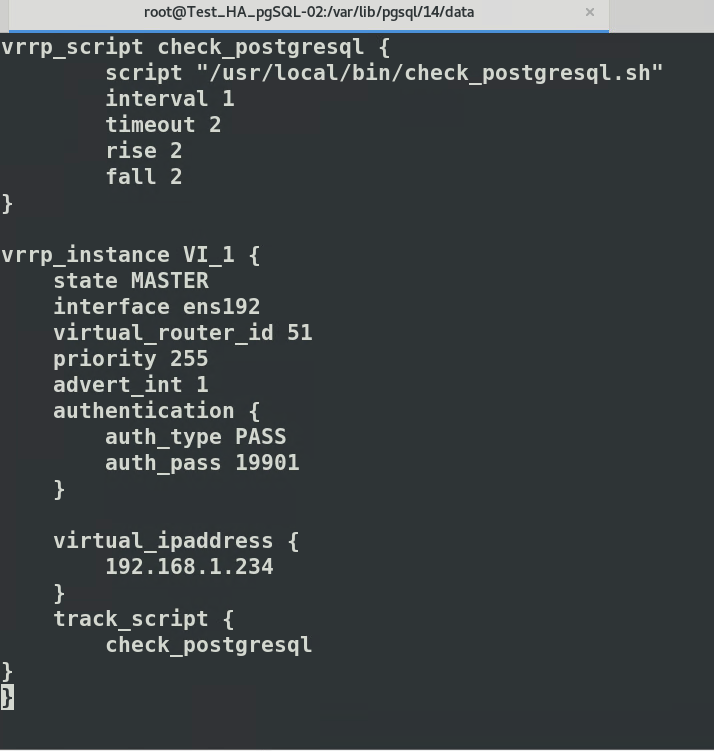
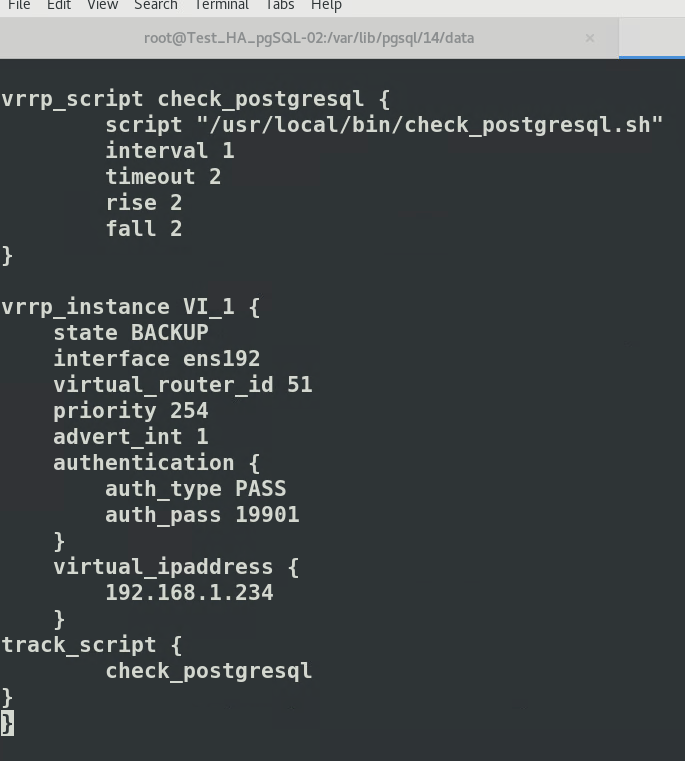
Nous avons setup un Keepalived pour les base de donnée avec une VIP (virtual adresse IP), pour qu'en cas de shutdown sur la base de donnée MAITRE, le standby reprennent directement le rélais

Configuration numéro 1, MAITRE dans /etc/keepalived/keepalived.conf[![image.png](https://cavallone.fr/uploads/images/gallery/2024-10/scaled-1680-/5xoMmzl8MCRNOGNZ-image.png)](https://cavallone.fr/uploads/images/gallery/2024-10/5xoMmzl8MCRNOGNZ-image.png)
Configuration numéro 2, SLAVE dans /etc/keepalived/keepalived.conf

[![image.png](https://cavallone.fr/uploads/images/gallery/2024-10/scaled-1680-/oVQoAhn8kDHeDdHP-image.png)](https://cavallone.fr/uploads/images/gallery/2024-10/oVQoAhn8kDHeDdHP-image.png)
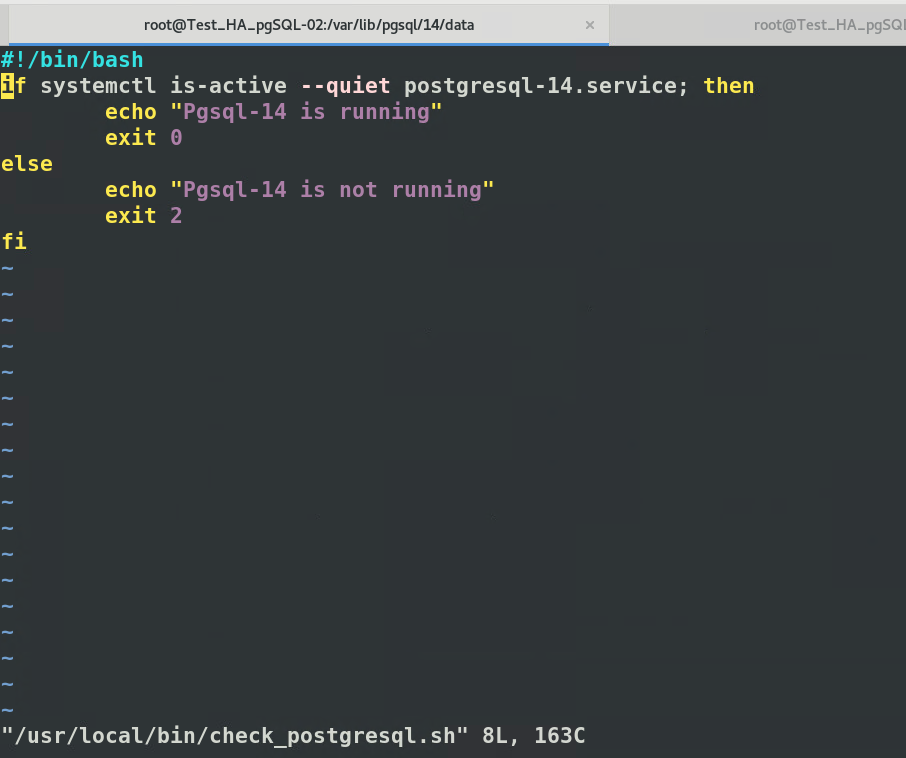
Nous avons focaliser notre flipping de VIP sur le service Pgsql14 via script :  
Si il est down sur le maitre, il partira sur les intervalle définit dans le fichier de conf sur le slave.   
La BDD sera donc hautement disponible le tant de débuger le nœud 1

[![image.png](https://cavallone.fr/uploads/images/gallery/2024-10/scaled-1680-/QRQbeCzdatcIiDc3-image.png)](https://cavallone.fr/uploads/images/gallery/2024-10/QRQbeCzdatcIiDc3-image.png)
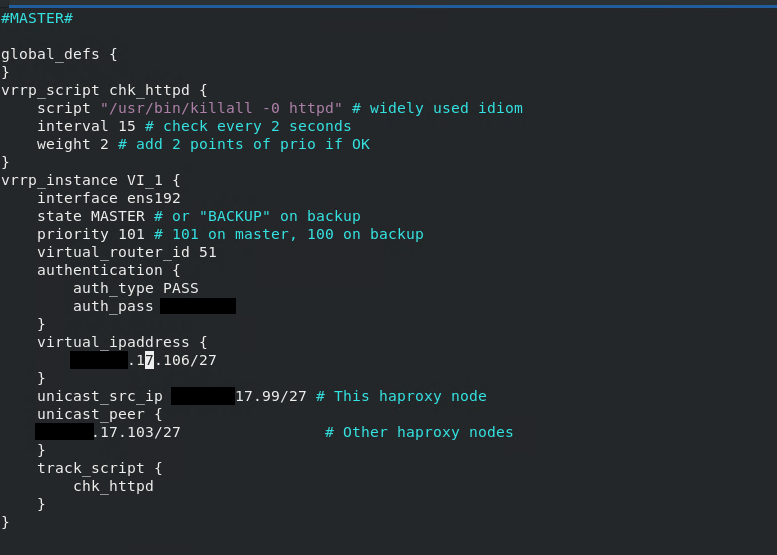
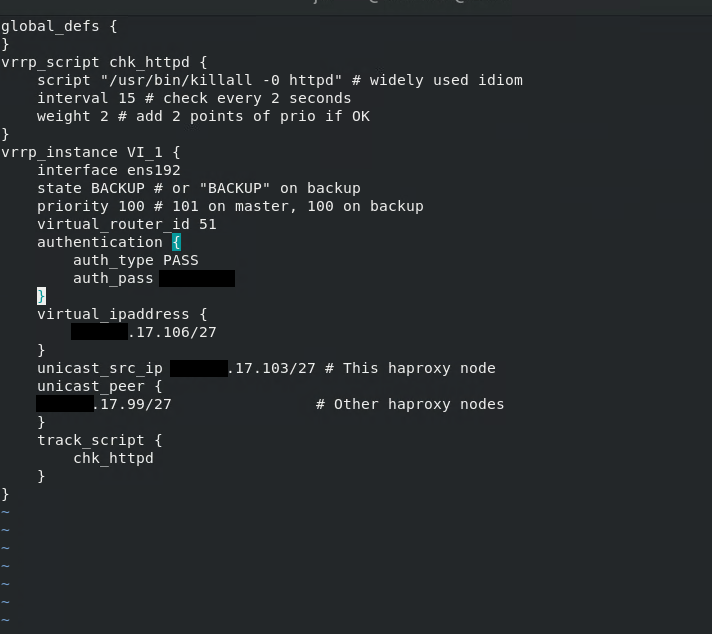
Une meilleur config pour apache 1 / master – check sur le service httpd.

[![image.png](https://cavallone.fr/uploads/images/gallery/2024-10/scaled-1680-/uAgK91ZbQwCUH85v-image.png)](https://cavallone.fr/uploads/images/gallery/2024-10/uAgK91ZbQwCUH85v-image.png)
Une meilleur config pour apache 2 / backup – check sur le service httpd.

[![image.png](https://cavallone.fr/uploads/images/gallery/2024-10/scaled-1680-/50xy5DfL4iDloUNO-image.png)](https://cavallone.fr/uploads/images/gallery/2024-10/50xy5DfL4iDloUNO-image.png)
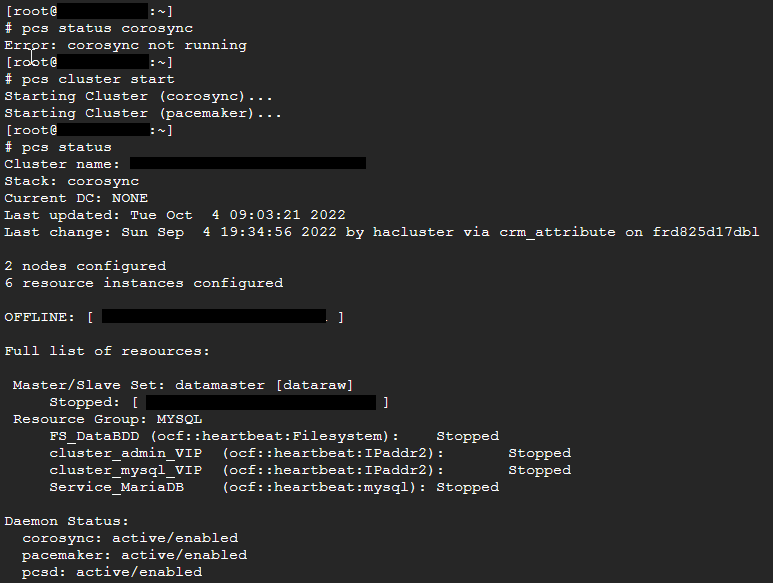
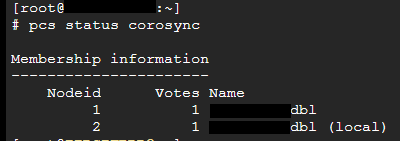
# Verifier l'état d'un cluster sous PaceMaker

[![image.png](https://cavallone.fr/uploads/images/gallery/2024-10/scaled-1680-/qAMgl7mXZOkuidT5-image.png)](https://cavallone.fr/uploads/images/gallery/2024-10/qAMgl7mXZOkuidT5-image.png)
[![image.png](https://cavallone.fr/uploads/images/gallery/2024-10/scaled-1680-/4Ou5pc78vSnBLQMF-image.png)](https://cavallone.fr/uploads/images/gallery/2024-10/4Ou5pc78vSnBLQMF-image.png)
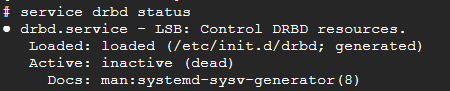
Pour l'alerte suivante : App-DRBD-Monitor --&gt; DRBD: 1 crit, 0 okay:  
Le service drbd ne doit pas être démarré manullement : il est géré par pacemaker via les commandes pcs

[![image.png](https://cavallone.fr/uploads/images/gallery/2024-10/scaled-1680-/fM5idsYBQwBL2TL0-image.png)](https://cavallone.fr/uploads/images/gallery/2024-10/fM5idsYBQwBL2TL0-image.png)
Identifier l'état du cluster :  
<span style="color: rgb(230, 126, 35);">drbdadm status</span>  
<span style="color: rgb(230, 126, 35);">drbdmon</span> (ne doit pas afficher d'alerte )

Mettre les sonde drbd en maintenance et procéder à une resynchronisation drbd

[![image.png](https://cavallone.fr/uploads/images/gallery/2024-10/scaled-1680-/qUsCbRID6BGifUjt-image.png)](https://cavallone.fr/uploads/images/gallery/2024-10/qUsCbRID6BGifUjt-image.png)
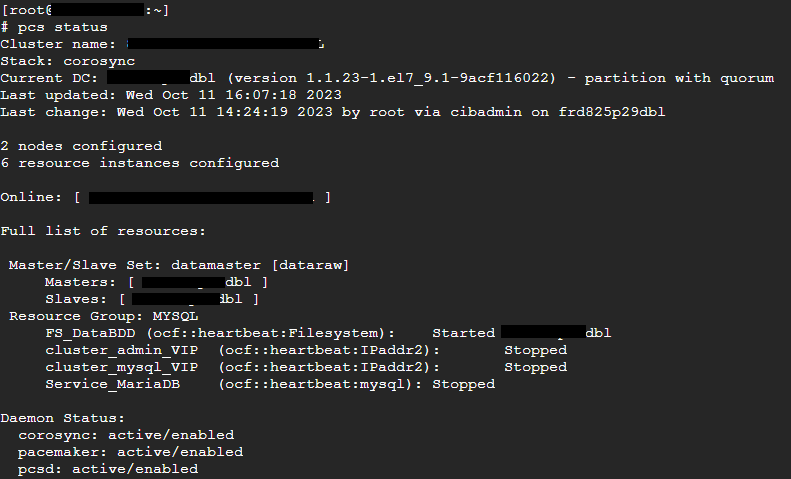
[![image.png](https://cavallone.fr/uploads/images/gallery/2024-10/scaled-1680-/FuAytsvFMKmxWbD2-image.png)](https://cavallone.fr/uploads/images/gallery/2024-10/FuAytsvFMKmxWbD2-image.png)

[![image.png](https://cavallone.fr/uploads/images/gallery/2024-10/scaled-1680-/4nFz4W7JPq8lWHCb-image.png)](https://cavallone.fr/uploads/images/gallery/2024-10/4nFz4W7JPq8lWHCb-image.png)
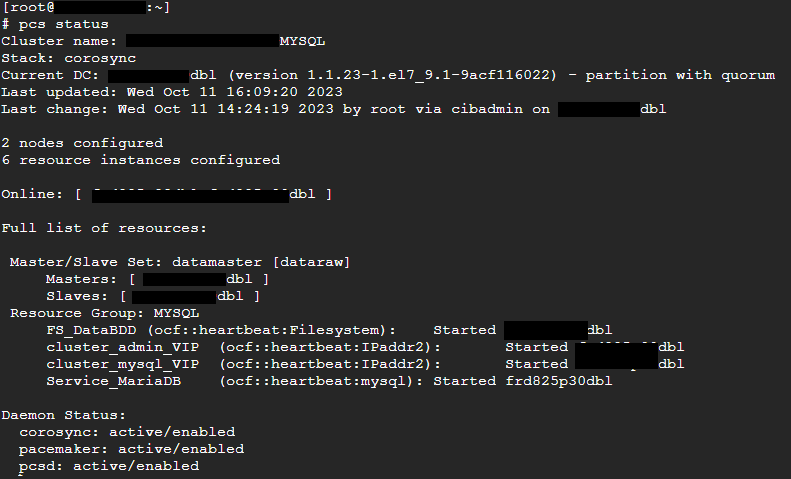
Déplacement des ressoures action préreboot/maj :

Vérifier l'etat du cluster  
<span style="color: rgb(230, 126, 35);">pcs status --full drbdadm status</span>  
<span style="color: rgb(230, 126, 35);">drbdmon</span> (ne doit pas afficher d'alerte )

Si drbd ok: déplacer les ressources sur le nœud sur lequel il n'y aura pas d'opération pcs resource move NOM\_DU\_GROUP\_DE\_RESOURCE (exemple ci dessus : MYSQL )

Vérifier le déplacement des resource avec pcs status mettre le nœud secondaire (sur lequel on va faire la mise à jour ou le reboot) en maintenance  
<span style="color: rgb(230, 126, 35);">pcs node maintenance nomdunoeud</span>  
  
mettre ensuite le nœud en standby  
<span style="color: rgb(230, 126, 35);">pcs node standby nomdunoeud</span>

procéder aux opérations de maintenance

# Correction d'erreur drbd resynchronisation de la réplication

Correction d'erreur drbd resynchronisation de la réplication :  
Identifier le noeud maitre  
  
<span style="color: rgb(230, 126, 35);">pcs status --full </span>

mettre le nœud secondaire en maintenance avec pcs   
<span style="color: rgb(230, 126, 35);">pcs node maintenance nomdunoeudpcs  
</span>  
Identifier la ou les ressources drbd avec la commande :   
<span style="color: rgb(230, 126, 35);">drbdadm dump  
  
</span> sur le nœud secondaire invalider les données de réplication drbd pour chacune des ressources :  
<span style="color: rgb(230, 126, 35);">drbdadm invalidate Nom\_de\_ressource\_drbd  
</span>  
Sur le nœud primaire préparer pour une resynchronisation forcée   
<span style="color: rgb(230, 126, 35);">drbdadm invalidate-remote Nom\_de\_ressource\_drbd   
</span>  
Sortir le nœud secondaire de maintenance  
<span style="color: rgb(230, 126, 35);">pcs node unmaintenance nomdunoeudpcs   
</span>  
Vérifier la synchronisation drbd sur les deux nœud avec d'un coté :  
<span style="color: rgb(230, 126, 35);">drbdmon  
</span>  
et sur l'autre nœud:  
<span style="color: rgb(230, 126, 35);">watch -n1 drbdadm status</span>

# HAproxy.conf

Config sur les machines proxy

[![image.png](https://cavallone.fr/uploads/images/gallery/2024-10/scaled-1680-/fqfNQ3cvR0QKSrn4-image.png)](https://cavallone.fr/uploads/images/gallery/2024-10/fqfNQ3cvR0QKSrn4-image.png)
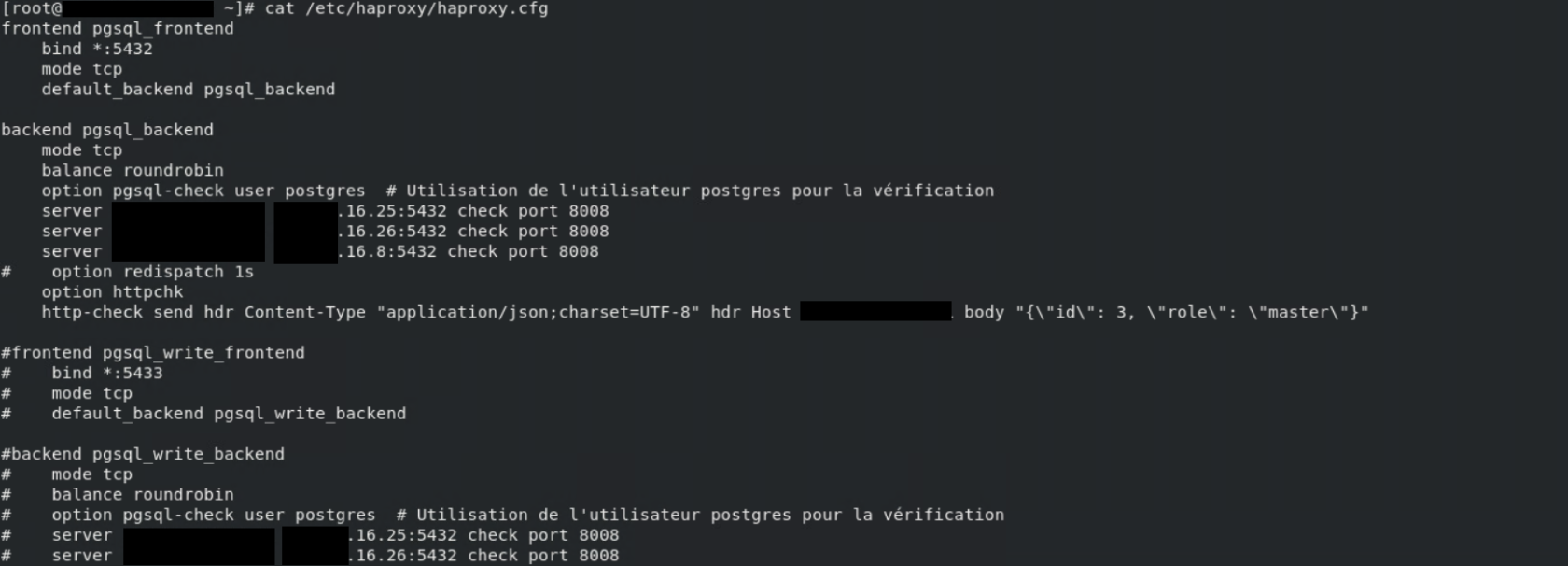
Format json pour vérification :

[![image.png](https://cavallone.fr/uploads/images/gallery/2024-10/scaled-1680-/asIXArEBgmYnA77d-image.png)](https://cavallone.fr/uploads/images/gallery/2024-10/asIXArEBgmYnA77d-image.png)
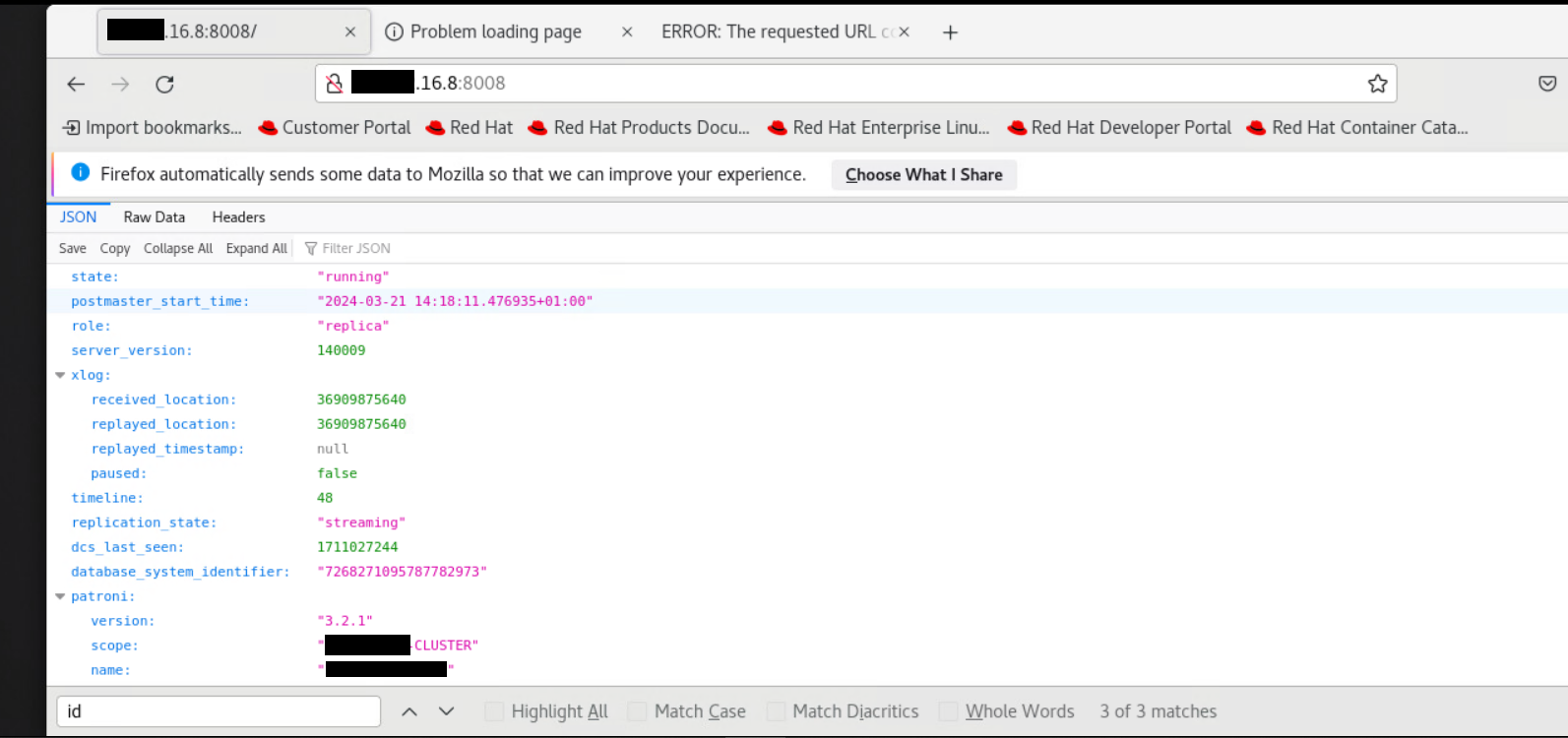
# Commande Tshoot Cluster NFS/PACEMAKER/COROSYNC

  
<span style="color: rgb(149, 165, 166);">lors de l'installation de votre cluster il faut que cette requête soit en état OK sur les 2 nœuds sinon votre cluster ne basculeras pas, j'ai eu le problème sur mes proxy ouvert, j'ai du les désactivé pour que la bascule fonctionne: </span>  
<span style="color: rgb(230, 126, 35);">curl -k https://\*\*\*\*\*.fr:2224/remote/status/</span>

<span style="color: rgb(230, 126, 35);"><span style="color: rgb(149, 165, 166);">Commande pour cleanup vos ressource si elles sont KO: </span>  
crm\_resource --cleanup -r p\_drbd\_ha\_nfs  
crm\_resource --cleanup -r p\_fs\_drbd1  
</span>

<span style="color: rgb(230, 126, 35);"><span style="color: rgb(149, 165, 166);">Commande pour disable ou remettre un noeud dans le cluster:</span></span>

<span style="color: rgb(230, 126, 35);">sudo pcs cluster standby &lt;nom\_du\_nœud&gt;  
sudo pcs cluster unstandby &lt;nom\_du\_nœud&gt;</span>

<span style="color: rgb(149, 165, 166);">disable les ressource sur un noeuds isolé:</span>

<span style="color: rgb(230, 126, 35);">pcs resource disable p\_exportfs\_openshift\_prod</span>  
<span style="color: rgb(230, 126, 35);">pcs resource disable p\_exportfs\_prod</span>  
<span style="color: rgb(230, 126, 35);">pcs resource disable p\_nfsserver</span>  
<span style="color: rgb(230, 126, 35);">pcs resource disable p\_fs\_drbd1</span>  
<span style="color: rgb(230, 126, 35);">pcs resource disable p\_drbd\_ha\_nfs</span>

<span style="color: rgb(230, 126, 35);">crm\_resource --resource p\_drbd\_ha\_nfs --node \*\*\*\*.fr --demote</span>

<span style="color: rgb(149, 165, 166);">réactiver les ressource sur un noeuds isolé: </span>

<span style="color: rgb(230, 126, 35);">pcs resource enable p\_drbd\_ha\_nfs  
pcs resource enable p\_fs\_drbd1  
pcs resource enable p\_nfsserver  
pcs resource enable p\_exportfs\_prod  
pcs resource enable p\_exportfs\_openshift\_prod</span>

<span style="color: rgb(230, 126, 35);">crm\_resource --resource p\_drbd\_ha\_nfs --node \*\*\*\*.fr --promote</span>

deconnecter ou connecter drbd sur le noeud isolé

<span style="color: rgb(230, 126, 35);">drbdadm disconnect ha\_nfs</span>

<span style="color: rgb(230, 126, 35);">sudo drbdadm connect ha\_nfs</span>

Forcer la synchronisation avec les données du nœud primaire

<span style="color: rgb(230, 126, 35);">drbdadm connect --discard-my-data ha\_nfs</span>

<span style="color: rgb(149, 165, 166);">Status du drbd </span>

<span style="color: rgb(230, 126, 35);">drbdadm status  
  
</span>

# Script de Nettoyage ressource sur un cluster NFS

<span style="color: rgb(230, 126, 35);"><span style="color: rgb(126, 140, 141);">Script à appliquer sur une crontab de 24h pour effectuer un nettoyage de vos ressource, si le NFS est consommé fréquemment, toujours choisir la première ressource de votre cluster cela nettoieras le reste à la suite peu importe le nombre de ressource derrière, le script rajoute un print sur des logs si cela a bien fonctionner </span></span><span style="color: rgb(230, 126, 35);"><span style="color: rgb(126, 140, 141);">: </span>  
</span>

```bash
#!/bin/bash

# Variable pour le fichier de log
LOG_FILE="/var/log/cleanup_p_drbd_ha_nfs.log"

# Bloc conditionnel pour exécuter le nettoyage
if sudo crm_resource -cleanup -r p_drbd_ha_nfs && sudo crm_resource -cleanup -r p_exportsfs_pprod; then
  # Si les deux commandes se sont exécutées avec succès
  echo "$(date +'%Y-%m-%d %H:%M:%S') - Clean up successful" >> "$LOG_FILE"
else
  # Si au moins une des commandes a échoué
  echo "$(date +'%Y-%m-%d %H:%M:%S') - Clean up failed" >> "$LOG_FILE"
fi
```

# Patroni cluster

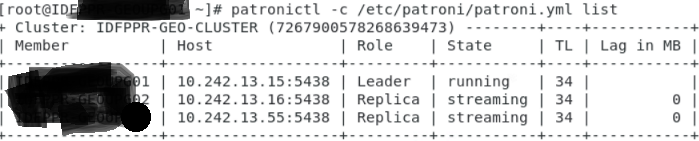
<div id="bkmrk-"></div><span style="color: rgb(45, 194, 107);">Lister un cluster patroni :</span>

<span style="color: rgb(230, 126, 35);">patronictl -c /etc/patroni/patroni.yml list</span>

[![image.png](https://cavallone.fr/uploads/images/gallery/2024-11/scaled-1680-/GDZW0o1on0qB2iXb-image.png)](https://cavallone.fr/uploads/images/gallery/2024-11/GDZW0o1on0qB2iXb-image.png)

# CONFIG OS


# Config template

[![image.png](https://cavallone.fr/uploads/images/gallery/2024-10/scaled-1680-/jDEPVkEUFCGAZI6w-image.png)](https://cavallone.fr/uploads/images/gallery/2024-10/jDEPVkEUFCGAZI6w-image.png)

```bash
Cat /etc/ntp/step-tickers
 
Timedatectl status
Timedatectl set-ntp true
hwclock
Iptables -F
Rm -fr  .bash_history
 
sudo useradd -M -s /sbin/nologin ansible
sudo -u ansible ssh-keygen -t rsa
```

# Hiearchy file system

/bin : binaire   
/lib : librairie de programme   
/boot : fichier du système démarage   
/usr :   
/usr/local :   
/opt : fichier optionnel   
/etc : editable text configuration   
/srv : service héberger par d'autre système, http, ftp, cvs, DB   
/var : donnée type variable, log mail ect   
/home : donnée aux utilisateurs spécifique

/root : donné aux système   
/tmp : donnée temporaire, pour pouvoir créer un programme dans le système   
/mnt : monter tous les différents de système de fichier temporaire   
/media : monter les média amovible '(clé usb, cd-rom, ID périphérique)'   
/dev : Fichier virtuel, pas besoin de partitions

btrfs : système de fichier plus moderne + révolutionnaire + snapshot

ext : extend file system

reseirfs : premier système de fichier sur linux plus accessible aujd

jfs : système de fichier constante et super éléver + gestionnaire de base de donnée

xfs : système de fichier constante et super élever particulièrement sur les entrées et sorties // favorisation pour les grosses hiérarchie à grosse données; meta donnée lente

fat: file allocation table

ntfs : new technologie file system

hfs : héarchie file système

udf : permet de gérer la création, suppression et modification des fichiers de disque optiques

dumpe2fs : récupérer des informations

tune2fs : modifier certain paramètre lié aux information récupérer de deumpe2fs

debugfs : relis tune2fs + dumpe2fs + autres outils = débugger un système de fichier

xfs\_metadump : permet de copié les métadonnées du système de fichier vers un fichier   
   
vim /etc/cups/cupsd.conf : configuration du pool cups : Imprimante

  
syslogd = log application

klogd = log pour le kernel k

Tous les messages d'erreur a fouiller : Authpriv, cron, kern, lpr, mail, new, syslog, user, uucp

/var/log

Logger = permet d'enregistrer des information dans le /var/log/syslog

/etc/init.d/atd "stop"or "start" :pour mettre en actif nos tache planifié

# Firewall

# Commande

<div id="bkmrk-">  
</div>- <span style="color: rgb(45, 194, 107);">**`iptables`** : Interface de bas niveau, nécessite une gestion manuelle et convient mieux aux systèmes plus anciens ou aux configurations spécifiques.</span>
- <span style="color: rgb(45, 194, 107);">**`firewalld`** : Plus haut niveau, offre une interface dynamique et facile à gérer via des zones.</span>

la commande suivante permet de lister les ports ouverts et les services en écoute sur un système, en utilisant netstat :

```bash
netstat -tulnp
```

lister les règles/filtrage:

```bash
Iptables -L -n -v
```

```bash
Firewall-cmd --list-all-zones
```

Pour ajouter une nouvelle règle de pare-feu à la zone par défaut, vous pouvez utiliser les commandes suivante :

```bash
firewall-cmd --permanent --add-rule type=tcp protocol=80 port=80
```

```bash
 firewall-cmd --permanent --add-rich-rule='rule family="ipv4" source address="10.242.0.0/27" port protocol="tcp" port="22" accept'
 firewall-cmd --permanent --add-rich-rule='rule family="ipv4" source address="10.242.0.0/27" port protocol="tcp" port="389" accept'
 firewall-cmd --permanent --add-rich-rule='rule family="ipv4" source address="10.242.0.0/27" port protocol="tcp" port="636" accept'
```

Pour appliquer les modifications à votre pare-feu, vous pouvez utiliser la commande suivante :

```bash
firewall-cmd --reload
```

# Créer un environnement virtuel python

Créer un environnement virtual sur sa machine pour ne pas toucher au versionning des paquets directement de votre OS.

Création d'un environnement virtuel Python

```bash
mkvirtualenv -p /usr/bin/python3 le_nom_de_ton_env
```

  
Action: Cette commande crée un nouvel environnement virtuel Python nommé "le\_nom\_de\_ton\_env". L'option -p /usr/bin/python3 spécifie que cet environnement utilisera Python 3 comme interpréteur.

```bash
TMP=/var/tmp pip3 install --upgrade pip
```

<span style="color: rgb(230, 126, 35);">  
</span>  
Action: Cette commande met à jour le gestionnaire de paquets pip dans l'environnement virtuel nouvellement créé.  
L'option TMP=/var/tmp spécifie un répertoire temporaire pour effectuer l'installation.

Activation et utilisation de l'environnement virtuel

```bash
workon le_nom_de_ton_env
```

<span style="color: rgb(230, 126, 35);">  
</span>  
Action: Cette commande active l'environnement virtuel que vous avez créé précédemment. Une fois activé, les commandes pip s'exécuteront dans le contexte de cet environnement isolé, vous pouvez exemple installer un nouvelle version d'ansible sur votre environnement virtuel

# Créer SERVER local REPOSITORY

Yum install httpd –y

  
Mettre en place un disque avec bcp de GB selon les repo que vous allez synchroniser, Exemple ( le repos Appstream = prend 120G) [![image.png](https://cavallone.fr/uploads/images/gallery/2024-10/scaled-1680-/RUEZtrpA84T3v9ir-image.png)](https://cavallone.fr/uploads/images/gallery/2024-10/RUEZtrpA84T3v9ir-image.png)  
  
Ouverture des ports firewall-cmd 80/tcp &amp; le service http :[![image.png](https://cavallone.fr/uploads/images/gallery/2024-10/scaled-1680-/6OmrelUrjuKjs6id-image.png)](https://cavallone.fr/uploads/images/gallery/2024-10/6OmrelUrjuKjs6id-image.png)

  
Aller dans <span style="color: rgb(45, 194, 107);">/etc/httpd/conf.d/httpd.conf </span>et changer le server name par l'adresse IP de votre server sur lequel vous pourrez acceder depuis internet via cette ip   
[![image.png](https://cavallone.fr/uploads/images/gallery/2024-10/scaled-1680-/30fcO7tuarW1N21Q-image.png)](https://cavallone.fr/uploads/images/gallery/2024-10/30fcO7tuarW1N21Q-image.png)

N'oublier pas de mettre le port sur le httpd.conf vous pouvez désormais sortir du fichier de conf et activer le service :  
<span style="color: rgb(230, 126, 35);">systemctl start httpd.service  
</span>[![image.png](https://cavallone.fr/uploads/images/gallery/2024-10/scaled-1680-/ThIhKSVgrCtpy1Z6-image.png)](https://cavallone.fr/uploads/images/gallery/2024-10/ThIhKSVgrCtpy1Z6-image.png)

Commande pour sync des repos d'internet sur le site web interne dans le chemin /var/www/html/......

[![image.png](https://cavallone.fr/uploads/images/gallery/2024-10/scaled-1680-/6TeKycclsjtpcjrc-image.png)](https://cavallone.fr/uploads/images/gallery/2024-10/6TeKycclsjtpcjrc-image.png)[![image.png](https://cavallone.fr/uploads/images/gallery/2024-10/scaled-1680-/CkMEvXmxCf7FtPB4-image.png)](https://cavallone.fr/uploads/images/gallery/2024-10/CkMEvXmxCf7FtPB4-image.png)[![image.png](https://cavallone.fr/uploads/images/gallery/2024-10/scaled-1680-/xkErBWO7VBiKQlkC-image.png)](https://cavallone.fr/uploads/images/gallery/2024-10/xkErBWO7VBiKQlkC-image.png)

  
Apres le reposync vous avez normalement quelque chose comme ca sur votre path : /var/www/html/[![image.png](https://cavallone.fr/uploads/images/gallery/2024-10/scaled-1680-/9AHuFOlQc2dFs6jd-image.png)](https://cavallone.fr/uploads/images/gallery/2024-10/9AHuFOlQc2dFs6jd-image.png)

  
Vous pouvez désormais accéder sur une page web sur vos range ip local de votre server de repos :

[![image.png](https://cavallone.fr/uploads/images/gallery/2024-10/scaled-1680-/qvDB7pMlICoalKN8-image.png)](https://cavallone.fr/uploads/images/gallery/2024-10/qvDB7pMlICoalKN8-image.png)

```yaml
Repos Important : 
---
- name: ums
  hosts: L
  tasks:
    - name: Create ums8.repo file
      ansible.builtin.copy:
        dest: /etc/yum.repos.d/ums8.repo
        content: |
          [UMS8OB]
          name=UMS8 epel
          baseurl=http://ip/epel/
          enabled=yes
          gpgcheck=no
```

# Logrotate

\# cat /etc/logrotate.d/prod

```shell
/production/www/clients/prod.log{
        daily
        missingok
        compress
        delaycompress
        notifempty
        copytruncate
        create 644 nom nom
}

/production/www/clients/dev.log{
        daily
        missingok
        compress
        delaycompress
        notifempty
        copytruncate
        create 644 nom nom
}
```

  
Pour lancer logrotate:  
logrotate -f /etc/logrotate.d/(ta conf)

# NMTUI

\#nmtui  
   
Activate a connection  
Set system hostname  
   
Edit connection  
Wired connection  
Check device mac  
   
Ipv4 configuration  
Manual &gt; show  
Never use this network for ipm  
   
Ipv4 configuration  
Manual &gt; show  
Automatically connect  
   
Deactivate et reactivate pour appliquer les changements

# Ajout Key SSh

```bash
#!/bin/bash
if [ "$#" -ne 2 ]; then
    echo "Usage: $0 <username> <remote_host>"
    exit 1
fi
 
username="$1"
remote_host="$2"
 
### COPY
If ssh-copy-id "$username@$remote_host" 2>/dev/null; then
    cat ~/.ssh/id_rsa.pub | ssh $username@$remote_host 'mkdir -p ~/.ssh && cat  >> ~/.ssh/authorized_keys'
    echo " COPY OK to host : $remote_host"
    echo "you can Test with   >>>   ssh $username@remote_host"
else
    echo "Failed to copy public key on host : $remote_host "
    exit 1
fi
```

# Ajout Proxy

Il faut mettre le script sous /etc/profile.d/proxy.sh

```bash
PROXY_URL=http://adresseip:port/
export http_proxy="$PROXY_URL"
export https_proxy="$PROXY_URL"
export ftp_proxy="$PROXY_URL"
export no_proxy="127.0.0.1,localhost"
```

   
Puis il faut exécuter :

```bash
source /etc/profile.d/proxy.sh
```

# Certificat


# Create CSR CERTIFICATE OPENSSL

[![image.png](https://cavallone.fr/uploads/images/gallery/2024-10/scaled-1680-/5MKyUXm0g3UIj4xk-image.png)](https://cavallone.fr/uploads/images/gallery/2024-10/5MKyUXm0g3UIj4xk-image.png)

[![image.png](https://cavallone.fr/uploads/images/gallery/2024-10/scaled-1680-/ZROzgnV19vRwVOBy-image.png)](https://cavallone.fr/uploads/images/gallery/2024-10/ZROzgnV19vRwVOBy-image.png)

# Certificat PFX EXTRACTION

[![image.png](https://cavallone.fr/uploads/images/gallery/2024-10/scaled-1680-/sZxTBKhlBtHx1P2S-image.png)](https://cavallone.fr/uploads/images/gallery/2024-10/sZxTBKhlBtHx1P2S-image.png)

[![image.png](https://cavallone.fr/uploads/images/gallery/2024-10/scaled-1680-/RDxTZd5GaxQSxIz1-image.png)](https://cavallone.fr/uploads/images/gallery/2024-10/RDxTZd5GaxQSxIz1-image.png)

[![image.png](https://cavallone.fr/uploads/images/gallery/2024-10/scaled-1680-/WxotDGX3LytvMz7N-image.png)](https://cavallone.fr/uploads/images/gallery/2024-10/WxotDGX3LytvMz7N-image.png)

# script extract certificat.pfx

```bash
#!/bin/bash

# mettre son fichier pfx
read -p "Entre le chemin de ton fichier PFX : " pfx_file

if [ -f "$pfx_file" ]; then
  echo "le fichier pfx na pas été trouver"
  exit 1
fi

# mettre le nom du certificat a extraire
read -p "Entre le nom du certificat : " cert_name

# extrait la clé privée
openssl pkcs12 in "$pfx_file" -nocerts -out "${cert_name}-encrypted.key"
openssl rsa in "${cert_name}-encrypted.key" -out "${cert_name}.key"

# extrait le certificat
openssl pkcs12 in "$pfx_file" clcerts nokeys out "${cert_name}.crt"

# extrait le CA
openssl pkcs12 in "$pfx_file" -nokeys nodes cacerts -out "${cert_name}-ca.crt"
```

# DATA


# Lister fichiers les plus volumineux sur partition

<span style="color: rgb(230, 126, 35);">du -aBm /production 2&gt;/dev/null | sort -nr | head -n 40</span>

[![image.png](https://cavallone.fr/uploads/images/gallery/2024-10/scaled-1680-/GfCariOzXY1DQEmH-image.png)](https://cavallone.fr/uploads/images/gallery/2024-10/GfCariOzXY1DQEmH-image.png)

[![image.png](https://cavallone.fr/uploads/images/gallery/2024-10/scaled-1680-/3dVnDLErmKHCbIYw-image.png)](https://cavallone.fr/uploads/images/gallery/2024-10/3dVnDLErmKHCbIYw-image.png)

Commande pratique :

<span style="color: rgb(230, 126, 35);">du -h -d 1 /chemin/</span>

# Espace disque manquant sur /var/crash - Disk-Usage-/var

<div id="bkmrk-lin-diskspace-plus">LIN-Diskspace-Plus</div><div id="bkmrk-disk-usage-%2Fvar"><span style="color: rgb(230, 126, 35);">Disk-Usage-/var</span></div><div id="bkmrk-">  
</div><div id="bkmrk-espace-plein-sur-le-">Espace plein sur le point de montage <span style="color: rgb(45, 194, 107);">/var</span>.</div><div id="bkmrk-il-s%27agit-en-g%C3%A9n%C3%A9ral">Il s'agit en général de fichiers crash dump qui prennent de la place à l'emplacement : <span style="color: rgb(45, 194, 107);"> /var/crash</span></div><div id="bkmrk--1">  
</div><div id="bkmrk--2">  
</div><div id="bkmrk-sonde%2Fservice-%3A">Sonde/Service :</div><div id="bkmrk-disk-usage-%2Fvar-1"><span style="color: rgb(230, 126, 35);">Disk-Usage-/var</span></div><div id="bkmrk--3">  
</div>[![image.png](https://cavallone.fr/uploads/images/gallery/2024-10/scaled-1680-/UvfrB0wvhxj88uFx-image.png)](https://cavallone.fr/uploads/images/gallery/2024-10/UvfrB0wvhxj88uFx-image.png)

<div id="bkmrk--5">  
</div><div id="bkmrk--6">  
</div><div id="bkmrk-h%C3%B4te-%3A%C2%A0">Hôte : </div><div id="bkmrk-action-%3A%C2%A0">Action : </div><div id="bkmrk---se-connecter-via-w">- Se connecter via winscp ou putty</div><div id="bkmrk---supprimer-ces-fich">- Supprimer ces fichiers pour récupérer l'espace disque.</div><div id="bkmrk--7">  
</div><div id="bkmrk-note-%3A">Note :</div><div id="bkmrk---lister-les-fichier">- Lister les fichiers puis consulter/ouvrir le fichier tree_result via commande : </div><div id="bkmrk-%23-du--hax---time-%2Fva">\# <span style="color: rgb(230, 126, 35);">du -hax --time /var | sort -hr &gt; /tmp/tree\_result</span></div><div id="bkmrk--8">  
</div><div id="bkmrk-modification-du-fich">Modification du fichier <span style="color: rgb(45, 194, 107);">/ect/sysctl.conf </span>en ajoutant la ligne </div><div id="bkmrk-fs.suid_dumpable-%3D-0"><span style="color: rgb(230, 126, 35);">fs.suid\_dumpable = 0</span></div><div id="bkmrk--9">  
</div><div id="bkmrk-%23d%C3%A9sactive-la-cr%C3%A9ati">\#Désactive la création de core dump pour les processus avec élévations de privilèges.</div><div id="bkmrk-puis-chargement-de-l">Puis chargement de la configuration <span style="color: rgb(230, 126, 35);">sysctl -p</span></div><div id="bkmrk--10">  
</div><div id="bkmrk-sysctl-pour-optimise"><span style="color: rgb(230, 126, 35);">sysctl </span>pour optimiser/tuner le système (fichier sysctl.conf déjà existant)</div>

# Mount un partage windows CIFS automatique

Je te transmets ci-dessous une procédure pour reproduire cette configuration sur les autres serveurs.  
   
Procédure :   
<span style="color: rgb(230, 126, 35);">yum install cifs-utils </span>  
<span style="color: rgb(230, 126, 35);">mkdir /data</span>  
<span style="color: rgb(230, 126, 35);"> mount -t cifs //idfm-ob.fr/idfm-nas-hprod/ortelius-rec /data -o username=ortelius-svc-rec-srv</span>  
<span style="color: rgb(224, 62, 45);"> Rentrer le password de ortelius demander sur le shell</span>  
<span style="color: rgb(45, 194, 107);"><span style="color: rgb(230, 126, 35);">df -h</span> </span>pour voir si il est bien monté

Création de la partition en automatique :   
<span style="color: rgb(45, 194, 107);">vi /etc/cifs-credentials</span>  
 username=\*\*\*\*\*\*\*\*  
password=\*\*\*\*\*\*\*\*

save &amp; quit   
   
<span style="color: rgb(230, 126, 35);">chmod 600 /etc/cifs-credentials</span>  
   
<span style="color: rgb(230, 126, 35);">vi /etc/fstab</span> : rajouter cette conf suivante pour que le reboot soit automatique[![image.png](https://cavallone.fr/uploads/images/gallery/2024-10/scaled-1680-/VwTfM8saRG1eWPDZ-image.png)](https://cavallone.fr/uploads/images/gallery/2024-10/VwTfM8saRG1eWPDZ-image.png)

<span style="color: rgb(45, 194, 107);">//idfm-ob.fr/idfm-nas-hprod/ortelius-rec /data cifs credentials=/etc/cifs-credentials,rw,vers=3.0,nofail,noauto,x-systemd.automount 0 0 </span>

  
Save &amp; quit   
   
reboot monter automatiquement :

[![image.png](https://cavallone.fr/uploads/images/gallery/2024-10/scaled-1680-/I9vhhuOlLdUYpQt8-image.png)](https://cavallone.fr/uploads/images/gallery/2024-10/I9vhhuOlLdUYpQt8-image.png)

# configuration LVM + rajout de disque sur un lvm

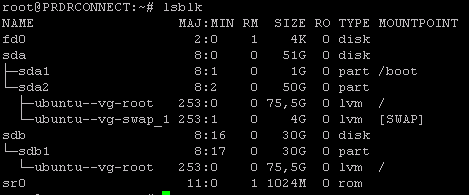
<div id="bkmrk-sch%C3%A9mas-de-finalisat">Schémas de finalisation de procédure : </div><div id="bkmrk-apr%C3%A8s-avoir-effectu%C3%A9">après avoir effectué cette procédure vous avez normalement ce schémas la en tapant : <span style="color: rgb(230, 126, 35);">lsblk </span></div>[![image.png](https://cavallone.fr/uploads/images/gallery/2024-10/scaled-1680-/rI3oHnMvDqaZFMUq-image.png)](https://cavallone.fr/uploads/images/gallery/2024-10/rI3oHnMvDqaZFMUq-image.png)

<div id="bkmrk--1">  
</div><div id="bkmrk--2">  
</div><div id="bkmrk-nous-allons-cr%C3%A9er-le">nous allons créer le VG et le LV depuis le début. Suivez ces étapes pour configurer LVM sur le nouveau disque /dev/sdb.</div><div id="bkmrk-cr%C3%A9er-une-nouvelle-p">**Créer une nouvelle partition sur /dev/sdb** :</div><div id="bkmrk--3">  
</div><div id="bkmrk-%E2%80%A2-appuyez-sur-n-pour">• Appuyez sur n pour créer une nouvelle partition.</div><div id="bkmrk-%E2%80%A2-choisissez-le-type">• Choisissez le type de partition primaire en appuyant sur p.</div><div id="bkmrk-%E2%80%A2-appuyez-sur-enter-">• Appuyez sur Enter pour accepter le numéro de partition par défaut (p. ex., 1).</div><div id="bkmrk-%E2%80%A2-appuyez-sur-enter--1">• Appuyez sur Enter pour accepter la première sector par défaut.</div><div id="bkmrk-%E2%80%A2-appuyez-sur-enter--2">• Appuyez sur Enter pour accepter la dernière sector par défaut (utilisez toute la capacité disponible).</div><div id="bkmrk-%E2%80%A2-appuyez-sur-t-pour">• Appuyez sur t pour modifier le type de partition et entrez 8e pour le type LVM.</div><div id="bkmrk-%E2%80%A2-appuyez-sur-w-pour">• Appuyez sur w pour enregistrer les modifications.</div><div id="bkmrk--4">  
</div><div id="bkmrk--5">  
</div><div id="bkmrk-cr%C3%A9er-un-physical-vo">Créer un Physical Volume (PV) sur la nouvelle partition :</div><div id="bkmrk-pvcreate-%2Fdev%2Fsdb1"><span style="color: rgb(230, 126, 35);">pvcreate /dev/sdb1</span></div><div id="bkmrk-%C2%A0"> </div><div id="bkmrk-cr%C3%A9er-un-volume-grou">Créer un Volume Group (VG) :</div><div id="bkmrk-vgcreate-data-%2Fdev%2Fs"><span style="color: rgb(230, 126, 35);">vgcreate data /dev/sdb1</span></div><div id="bkmrk--6"></div><div id="bkmrk-cela-cr%C3%A9e-un-vg-appe">Cela crée un VG appelé data qui inclut le PV /dev/sdb1.</div><div id="bkmrk-%C2%A0-1"> </div><div id="bkmrk-cr%C3%A9er-un-logical-vol">Créer un Logical Volume (LV) :</div><div id="bkmrk-lvcreate--n-data--l-"><span style="color: rgb(230, 126, 35);">lvcreate -n data -l 100%FREE data</span></div><div id="bkmrk--7"></div><div id="bkmrk-cela-cr%C3%A9e-un-lv-appe">Cela crée un LV appelé data dans le VG data en utilisant tout l'espace disponible.</div><div id="bkmrk--8">  
</div><div id="bkmrk-formatage-du-syst%C3%A8me">Formatage du système de fichiers XFS sur le LV :</div><div id="bkmrk-mkfs.xfs-%2Fdev%2Fdata%2Fd"><span style="color: rgb(230, 126, 35);">mkfs.xfs /dev/data/data</span></div><div id="bkmrk-%C2%A0-2"> </div><div id="bkmrk-cr%C3%A9er-le-point-de-mo">Créer le point de montage :</div><div id="bkmrk-mkdir-%2Fdata"><span style="color: rgb(230, 126, 35);">mkdir /data</span></div><div id="bkmrk-%C2%A0-3"> </div><div id="bkmrk-mettre-%C3%A0-jour-%2Fetc%2Ff">Mettre à jour /etc/fstab pour le montage persistant :</div><div id="bkmrk-echo-%27%2Fdev%2Fmapper%2Fda"><span style="color: rgb(230, 126, 35);">echo '/dev/mapper/data-data /data xfs defaults 0 0' &gt;&gt; /etc/fstab</span></div><div id="bkmrk--9">  
</div><div id="bkmrk-monter-tous-les-volu">Monter tous les volumes :</div><div id="bkmrk-mount-%E2%80%93a"><span style="color: rgb(230, 126, 35);">mount –a</span></div><div id="bkmrk--10">  
</div><div id="bkmrk--11">  
</div><div id="bkmrk-end%C2%A0">END </div>

# Augmentation Disque Linux avec LVM

Augmentation espace disque Linux sur SERVER par exemple :

[![image.png](https://cavallone.fr/uploads/images/gallery/2024-10/scaled-1680-/gdym6WnFYxZ2wg3o-image.png)](https://cavallone.fr/uploads/images/gallery/2024-10/gdym6WnFYxZ2wg3o-image.png)

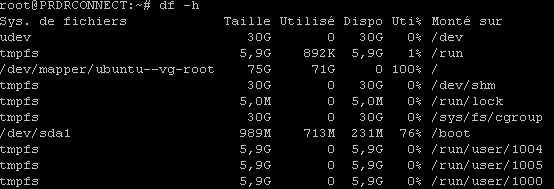
<p class="callout info">Partition Racine pleine à 100%.</p>

[![image.png](https://cavallone.fr/uploads/images/gallery/2024-10/scaled-1680-/4pDuRZ93PefFj4Hs-image.png)](https://cavallone.fr/uploads/images/gallery/2024-10/4pDuRZ93PefFj4Hs-image.png)

Augmenter la taille du deuxième disque dans Vmware:

[![image.png](https://cavallone.fr/uploads/images/gallery/2024-10/scaled-1680-/JS3R9rSkY1HtuZWY-image.png)](https://cavallone.fr/uploads/images/gallery/2024-10/JS3R9rSkY1HtuZWY-image.png)  
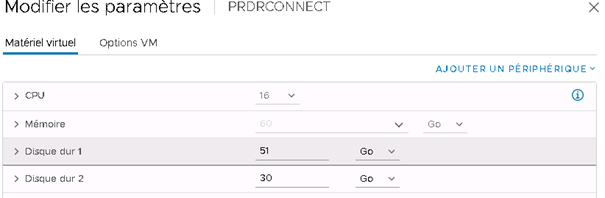
  
Après ajout :

[![image.png](https://cavallone.fr/uploads/images/gallery/2024-10/scaled-1680-/jfQQvT0HA4z7xUiI-image.png)](https://cavallone.fr/uploads/images/gallery/2024-10/jfQQvT0HA4z7xUiI-image.png)
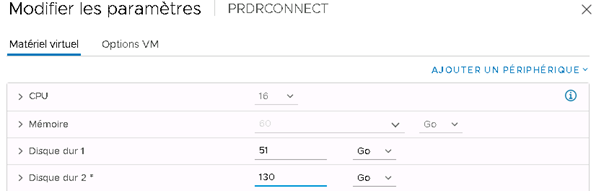
Puis prendre un snapshot du serveur.  
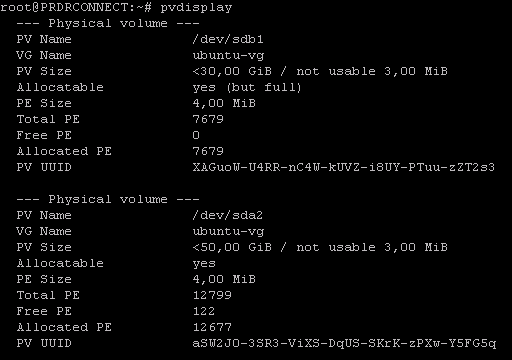
<span style="color: rgb(230, 126, 35);">pvdisplay</span>

[![image.png](https://cavallone.fr/uploads/images/gallery/2024-10/scaled-1680-/srzllWauFq3CYdWJ-image.png)](https://cavallone.fr/uploads/images/gallery/2024-10/srzllWauFq3CYdWJ-image.png)

<span style="color: rgb(230, 126, 35);">ls /sys/class/scsi\_device/</span>

[![image.png](https://cavallone.fr/uploads/images/gallery/2024-10/scaled-1680-/IE1LjPbrMJkiFkld-image.png)](https://cavallone.fr/uploads/images/gallery/2024-10/IE1LjPbrMJkiFkld-image.png)

<span style="color: rgb(230, 126, 35);">echo 1 &gt; /sys/class/scsi\_device/2\\:0\\:0\\:0/device/rescan</span>  
<span style="color: rgb(230, 126, 35);">echo 1 &gt; /sys/class/scsi\_device/32\\:0\\:0\\:0/device/rescan</span>  
<span style="color: rgb(230, 126, 35);">echo 1 &gt; /sys/class/scsi\_device/32\\:0\\:1\\:0/device/rescan</span>

  
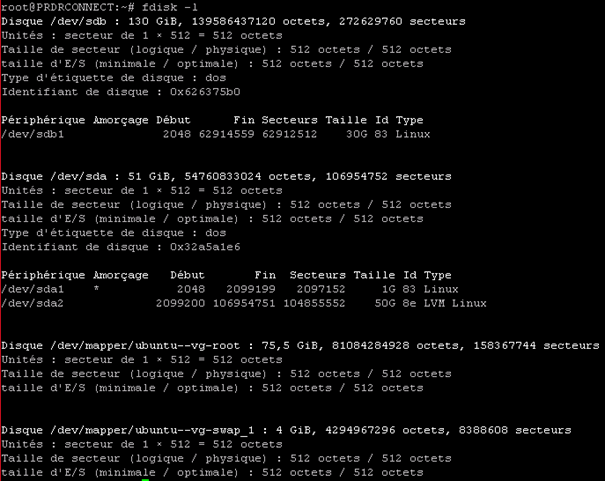
<span style="color: rgb(230, 126, 35);">fdisk -l</span>

[![image.png](https://cavallone.fr/uploads/images/gallery/2024-10/scaled-1680-/udBNKSVZz85DC0kM-image.png)](https://cavallone.fr/uploads/images/gallery/2024-10/udBNKSVZz85DC0kM-image.png)

<span style="color: rgb(230, 126, 35);">pvscan</span>

[![image.png](https://cavallone.fr/uploads/images/gallery/2024-10/scaled-1680-/BZfD8L4i7TrSg030-image.png)](https://cavallone.fr/uploads/images/gallery/2024-10/BZfD8L4i7TrSg030-image.png)

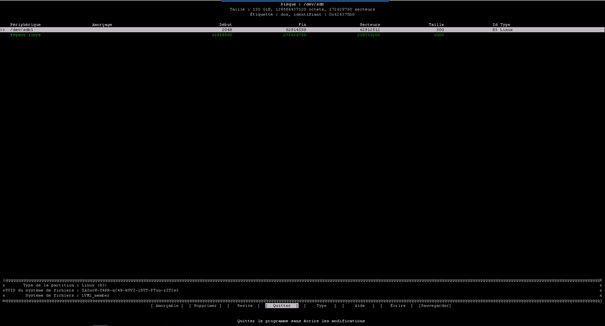
<span style="color: rgb(230, 126, 35);">cfdisk /dev/sdb</span>

[![image.png](https://cavallone.fr/uploads/images/gallery/2024-10/scaled-1680-/xrvQxgANPOyTsQYZ-image.png)](https://cavallone.fr/uploads/images/gallery/2024-10/xrvQxgANPOyTsQYZ-image.png)  
  
Resize puis faire entrée

[![image.png](https://cavallone.fr/uploads/images/gallery/2024-10/scaled-1680-/3S3xcw4uz0nMD7uG-image.png)](https://cavallone.fr/uploads/images/gallery/2024-10/3S3xcw4uz0nMD7uG-image.png)
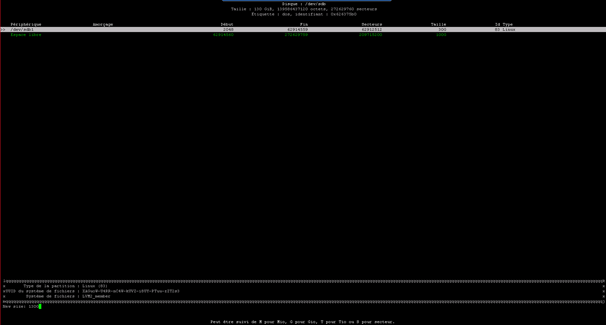
[![image.png](https://cavallone.fr/uploads/images/gallery/2024-10/scaled-1680-/qYEMwdMREuRQGz81-image.png)](https://cavallone.fr/uploads/images/gallery/2024-10/qYEMwdMREuRQGz81-image.png)  

Sélectionner Ecrire et saisir oui

[![image.png](https://cavallone.fr/uploads/images/gallery/2024-10/scaled-1680-/jRbaVUowsXVVVJ1D-image.png)](https://cavallone.fr/uploads/images/gallery/2024-10/jRbaVUowsXVVVJ1D-image.png)  

Quitter

  
Partprobe

<span style="color: rgb(230, 126, 35);">Pvscan  
</span>[![image.png](https://cavallone.fr/uploads/images/gallery/2024-10/scaled-1680-/ZvY12r4vIEJGXmAD-image.png)](https://cavallone.fr/uploads/images/gallery/2024-10/ZvY12r4vIEJGXmAD-image.png)

[![image.png](https://cavallone.fr/uploads/images/gallery/2024-10/scaled-1680-/JAWMuOIRsPjhcg2j-image.png)](https://cavallone.fr/uploads/images/gallery/2024-10/JAWMuOIRsPjhcg2j-image.png)
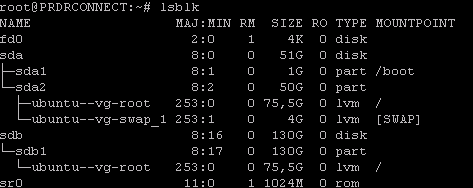
<span style="color: rgb(230, 126, 35);">pvresize /dev/sdb1</span>

[![image.png](https://cavallone.fr/uploads/images/gallery/2024-10/scaled-1680-/8JhQLMiYrtzTkTG1-image.png)](https://cavallone.fr/uploads/images/gallery/2024-10/8JhQLMiYrtzTkTG1-image.png)

<span style="color: rgb(230, 126, 35);">Pvs</span>

[![image.png](https://cavallone.fr/uploads/images/gallery/2024-10/scaled-1680-/AdfVI0SdJLfI3ckX-image.png)](https://cavallone.fr/uploads/images/gallery/2024-10/AdfVI0SdJLfI3ckX-image.png)

<span style="color: rgb(230, 126, 35);">Vgs</span>

[![image.png](https://cavallone.fr/uploads/images/gallery/2024-10/scaled-1680-/PmllsSQxpJE9TaMO-image.png)](https://cavallone.fr/uploads/images/gallery/2024-10/PmllsSQxpJE9TaMO-image.png)

<span style="color: rgb(230, 126, 35);">lvs</span>

[![image.png](https://cavallone.fr/uploads/images/gallery/2024-10/scaled-1680-/q03KFl2tWIpl4jNW-image.png)](https://cavallone.fr/uploads/images/gallery/2024-10/q03KFl2tWIpl4jNW-image.png)

<span style="color: rgb(230, 126, 35);">Df -h</span>

[![image.png](https://cavallone.fr/uploads/images/gallery/2024-10/scaled-1680-/rH3BqLXkqVEaa5od-image.png)](https://cavallone.fr/uploads/images/gallery/2024-10/rH3BqLXkqVEaa5od-image.png)

<span style="color: rgb(230, 126, 35);">lvresize -l +100%FREE /dev/mapper/ubuntu--vg-root</span>

[![image.png](https://cavallone.fr/uploads/images/gallery/2024-10/scaled-1680-/7XLNPxoeVg1waH6Y-image.png)](https://cavallone.fr/uploads/images/gallery/2024-10/7XLNPxoeVg1waH6Y-image.png)

<span style="color: rgb(230, 126, 35);">Lvs</span>

[![image.png](https://cavallone.fr/uploads/images/gallery/2024-10/scaled-1680-/oQEZzQfnV0ctLiTw-image.png)](https://cavallone.fr/uploads/images/gallery/2024-10/oQEZzQfnV0ctLiTw-image.png)

<span style="color: rgb(230, 126, 35);">resize2fs -p /dev/mapper/ubuntu--vg-root</span>

[![image.png](https://cavallone.fr/uploads/images/gallery/2024-10/scaled-1680-/OxWTwDqkZIbqy1Rt-image.png)](https://cavallone.fr/uploads/images/gallery/2024-10/OxWTwDqkZIbqy1Rt-image.png)

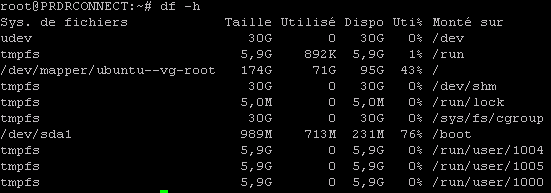
<span style="color: rgb(230, 126, 35);">Df -h</span>

[![image.png](https://cavallone.fr/uploads/images/gallery/2024-10/scaled-1680-/897mutawleVjZWV8-image.png)](https://cavallone.fr/uploads/images/gallery/2024-10/897mutawleVjZWV8-image.png)

<p class="callout success">Tout est bon les volumes physiques et logiques ont été augmentés. Bravo !!!! Penser à supprimer le snapshot après.  
</p>

# monter un LVM via 2 playbook

<span style="color: rgb(45, 194, 107);">Playbook monter un lvm sur /data</span>

```yaml
---
- name: Post-configure machine
  hosts: virtual_machines
  become: yes
  gather_facts: yes

  vars:
    data_devices:
      - /dev/sdb

  tasks:
    - name: Create volume group 'Vodata'
      community.general.lvg:
        vg: Vodata
        pvs: "{{ data_devices|join(',') }}"

    - name: Create logical volume 'data'
      community.general.lvol:
        lv: data
        vg: Vodata
        size: +100%FREE
        resizefs: yes
        force: yes

    - name: Format /data
      community.general.filesystem:
        dev: /dev/VGdata/data
        fstype: xfs
        opts: "{{ additional_options }}"
      vars:
        additional_options: >-
          -i metadata_csum,64bit
          {% if ansible_kernel.version|version_compare('3.18', '>=') %}
          -i delalloc
          {% endif %}

    - name: Mount /data
      ansible.posix.mount:
        path: /data
        src: LABEL=DATA
        fstype: xfs
        opts: rw,defaults
        passno: 2
        state: mounted
```

  
\-------------------------------------------------------------------------------------------

<span style="color: rgb(45, 194, 107);">Playbook gestion création entre 2 stockage de lvm : playbook pour la certification RHCE. </span>

```yaml
---

name: create lvm in the system
become: true
hosts: all

tasks:
  - name: Create LVM data as 1500MB
    block:
      - name: Create LVM data
        community.general.lvol:
          vg: research
          lv: data
          size: 1500M
      when: ansible_lvm.vgs.research.size_gb > 1500
  - name:
    block:
      - debug:
          msg: "The Required size of lv is less then 1500 MB so creating a 800 MB LVM"
      when: ansible_lvm.vgs.research.size_gb < 1500 and ansible_lvm.vgs.research.size_gb > 800
      - name: Create LVM Data as 800MB
        community.general.lvol:
          vg: research
          lv: data
          size: 800M
      when: ansible_lvm.vgs.research.size_gb < 1500
  - name: create file system on lvm
    block:
      - community.general.filesystem:
          fstype: ext4
          dev: /dev/research/data
      when: ansible_lvm.vgs.research is defined
  - name:
    block:
      - debug:
          msg: "The Required Volume Group does not exits in this system"
      when: ansible_lvm.vgs.research is not defined
```

# Test remplissage d'un disque

Remplir un disque :

```bash
dd if=/dev/zero of=/data/testfile bs=1M count=9500
```

# Helm


# Installation HelmCLI

<div id="bkmrk-"></div><span style="color: rgb(45, 194, 107);">Installation helm, regarder si vous allez bien pointé sur là dernière version d'helm par rapport à la publication de cette rubrique. </span>

```bash
curl -fsSL -o get_helm.sh https://raw.githubusercontent.com/helm/helm/main/scripts/get-helm-3
chmod 700 get_helm.sh
ls /usr/local/bin/helm
export PATH=$PATH:/usr/local/bin
./get_helm.sh
```

<span style="color: rgb(45, 194, 107);">TEST HELM INSTALL :</span>

```bash
helm version
helm repo add stable https://charts.helm.sh/stable
helm repo update
```

# Helm commande

<span style="color: rgb(45, 194, 107);">Commande helm pour tester son template values sur un cluster openshift ou kubernetes :</span>  
<span style="color: rgb(230, 126, 35);">helm template onyx ./ -f values-recette.yaml --namespace onyx-recette --debug</span>

<span style="color: rgb(45, 194, 107);">**Décomposition de la commande:**</span>

- **`helm template`:** C'est la commande principale qui indique à Helm que nous voulons générer un template.
- **`onyx`:** C'est le nom du chart Helm que vous souhaitez utiliser comme base pour générer le manifest. Un chart Helm est un package qui contient les fichiers de configuration nécessaires pour déployer une application sur Kubernetes.
- **`./`:** Ce point indique le répertoire courant. Cela signifie que le chart Helm `onyx` se trouve dans le répertoire où vous exécutez cette commande.
- **`-f values-recette.yaml`:** Ce drapeau indique à Helm d'utiliser le fichier `values-recette.yaml` comme fichier de valeurs. Ce fichier contient les valeurs spécifiques à votre déploiement, comme les noms d'hôtes, les ports, etc.
- **`--namespace onyx-recette`:** Ce drapeau spécifie que le manifest généré sera déployé dans l'espace de noms `onyx-recette` de votre cluster Kubernetes.
- **`--debug`:** Ce drapeau active le mode débogage, ce qui signifie que Helm affichera plus d'informations sur le processus de génération du template.

\------------------------------------------------------------------------------------------------------------------------------------------------------

d'autre commande arrive seront placée par la suite