# Network

# NTP


# Client meinberg (Windows)

<div id="bkmrk-installation-du-last">Installation du last exe stable [Meinberg NTP Software Downloads (meinbergglobal.com)](https://www.meinbergglobal.com/english/sw/ntp.htm#ntp_stable)</div><div id="bkmrk-%C2%A0"> </div><div id="bkmrk-1.-check-the-box-and">1. Check the box and enable "Create an initial configuration file with the following settings:</div><div id="bkmrk-%C2%A0-1"> </div><div id="bkmrk-%C2%A0-2"> </div>[![image.png](https://cavallone.fr/uploads/images/gallery/2024-10/scaled-1680-/NOAAkK3VFd1WeF2R-image.png)](https://cavallone.fr/uploads/images/gallery/2024-10/NOAAkK3VFd1WeF2R-image.png)

<div id="bkmrk--1">  
</div><div id="bkmrk-%C2%A0-3"> </div><div id="bkmrk-definir-l%27ip-du-ntp">Definir l'ip du NTP</div><div id="bkmrk-%C2%A0-4"> </div><div id="bkmrk-recupere-le-fichier-">Recupere le fichier conf </div><div id="bkmrk--2"></div>

# Meinberg

<p class="callout info align-center">**Cette article est divisé en 3 parties :**  
*1. Configuration FROM SCRATCH*  
*2. Import configuration*  
*3. Reset Configuration*  
</p>

Brancher le port management au pc  
Se connecter à l’adresse ip obtenu en dhcp via le navigateur web.  
Utiliser les logins par defaut « root » et mdp « timeserver »  
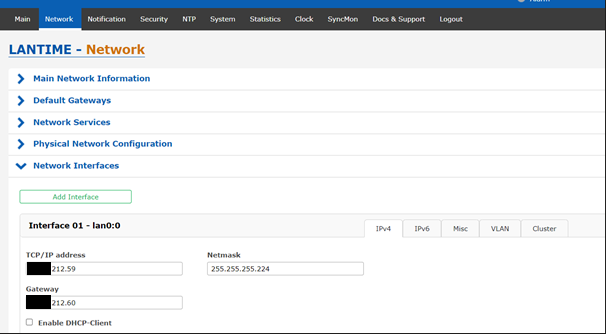
Une fois connecté aller dans <span style="color: rgb(45, 194, 107);">Network / Network Interfaces</span> et définir l’adresse ip, sa gateway et son mask.

[![image.png](https://cavallone.fr/uploads/images/gallery/2024-10/scaled-1680-/wfgRFrWSOqPrAYYq-image.png)](https://cavallone.fr/uploads/images/gallery/2024-10/wfgRFrWSOqPrAYYq-image.png)
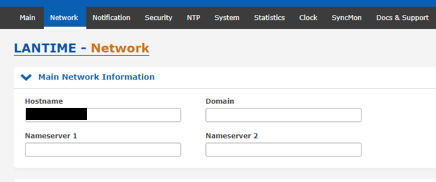
Remonté dans main Network information et définir le hostname  
[![image.png](https://cavallone.fr/uploads/images/gallery/2024-10/scaled-1680-/VrHqXh1cNHjDWBtZ-image.png)](https://cavallone.fr/uploads/images/gallery/2024-10/VrHqXh1cNHjDWBtZ-image.png)
  
Sauvegarder la configuration et valider le startup configuration comme demandé dans le bandeau jaune ci-dessous.[![image.png](https://cavallone.fr/uploads/images/gallery/2024-10/scaled-1680-/hcyoLNJt0CG1g9PI-image.png)](https://cavallone.fr/uploads/images/gallery/2024-10/hcyoLNJt0CG1g9PI-image.png)

  
Brancher le ntp à son port switch et se connecter à la nouvelle adresse ip pour continuer les modifications.  
Definir la localisation et langage d’interface préféré dans system / General Settings.  
[![image.png](https://cavallone.fr/uploads/images/gallery/2024-10/scaled-1680-/NN7nkt7chTUCTkaD-image.png)](https://cavallone.fr/uploads/images/gallery/2024-10/NN7nkt7chTUCTkaD-image.png)
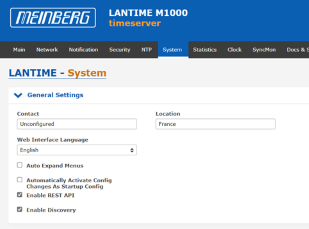
  
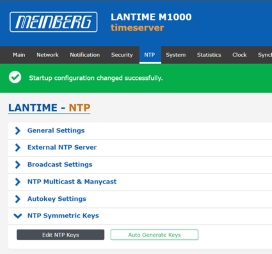
Pour Configurer les clés symétriques, aller dans <span style="color: rgb(45, 194, 107);">NTP / NTP Symmetric Keys / Edit NTP Keys  
</span>[![image.png](https://cavallone.fr/uploads/images/gallery/2024-10/scaled-1680-/77fGaBSpqHQ6NYif-image.png)](https://cavallone.fr/uploads/images/gallery/2024-10/77fGaBSpqHQ6NYif-image.png)

  
Une fois dans Edit NTP KEYS définir :  
 KEY ID = XXX  
 TYPE = MD5 / SHA1  
 KEY = MOT DE PASSE SOUHAITE

[![image.png](https://cavallone.fr/uploads/images/gallery/2024-10/scaled-1680-/DBQfNeQed40vVXaj-image.png)](https://cavallone.fr/uploads/images/gallery/2024-10/DBQfNeQed40vVXaj-image.png)
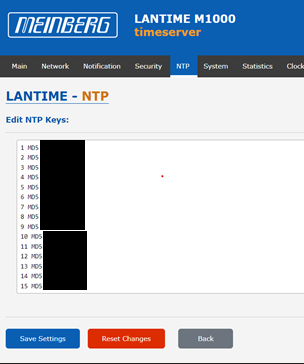
Sauvegarder les changements  
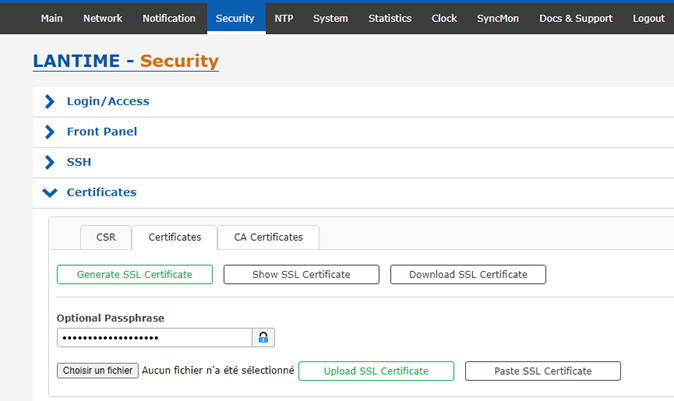
Se rendre Dans security onglets Certificates / Certificates  
[![image.png](https://cavallone.fr/uploads/images/gallery/2024-10/scaled-1680-/tQYE316aTnctpobe-image.png)](https://cavallone.fr/uploads/images/gallery/2024-10/tQYE316aTnctpobe-image.png)
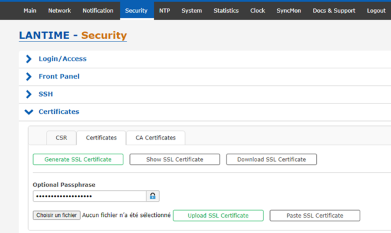
  
Cliquer sur choisir un fichier, et choisir le certificat en rapport[![image.png](https://cavallone.fr/uploads/images/gallery/2024-11/scaled-1680-/2oI1xrwP51P6EopE-image.png)](https://cavallone.fr/uploads/images/gallery/2024-11/2oI1xrwP51P6EopE-image.png)
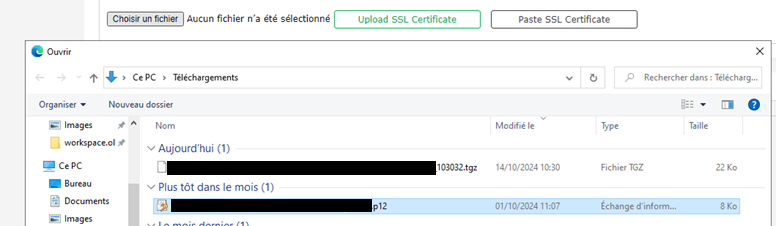
  
Puis définir le mot de passe du certificats  
[![image.png](https://cavallone.fr/uploads/images/gallery/2024-11/scaled-1680-/f021vyPsfY9lX0cc-image.png)](https://cavallone.fr/uploads/images/gallery/2024-11/f021vyPsfY9lX0cc-image.png)
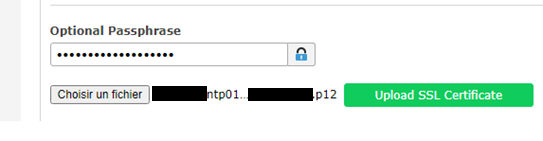
  
Appuyer sur Upload SSL Certificate, le message suivant devrait apparaitre si tout est bon :  
 [![image.png](https://cavallone.fr/uploads/images/gallery/2024-11/scaled-1680-/zFVb5SPow9w3ULVv-image.png)](https://cavallone.fr/uploads/images/gallery/2024-11/zFVb5SPow9w3ULVv-image.png)  

  
   
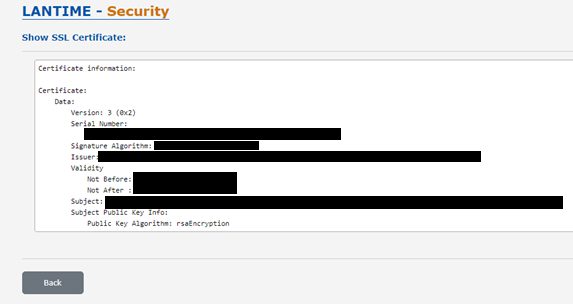
Pour verifier que celui-ci est bien envoyé allez dans Show SSL Certificate[![image.png](https://cavallone.fr/uploads/images/gallery/2024-11/scaled-1680-/MHOW7bSGTYE3X3yH-image.png)](https://cavallone.fr/uploads/images/gallery/2024-11/MHOW7bSGTYE3X3yH-image.png)
  
Le certificat en place sera affiche avec les informations   
 [![image.png](https://cavallone.fr/uploads/images/gallery/2024-11/scaled-1680-/jr78txin3vErBd9X-image.png)](https://cavallone.fr/uploads/images/gallery/2024-11/jr78txin3vErBd9X-image.png)
  
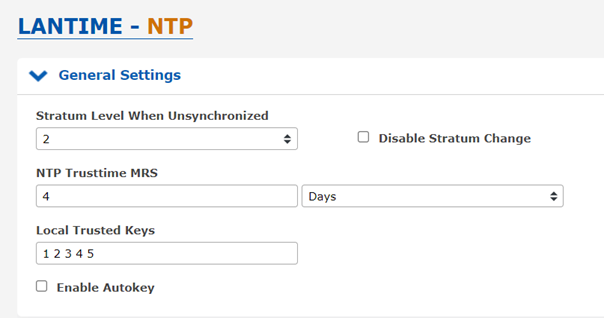
Aller dans NTP / General Settings puis définir les paramètres suivant :  
Stratum : 2  
Local Trusted keys : toute les keys nécessaires aux équipements.[![image.png](https://cavallone.fr/uploads/images/gallery/2024-11/scaled-1680-/0U2FXTWnkw0iLvT6-image.png)](https://cavallone.fr/uploads/images/gallery/2024-11/0U2FXTWnkw0iLvT6-image.png)
  
Aller dans NTP / Broadcast Settings puis définir les paramètres suivant :  
Broadcast Address 1: IP du NTP  
Symmetric Key: Les clefs utilisés[![image.png](https://cavallone.fr/uploads/images/gallery/2024-11/scaled-1680-/99xwxZWWO1BeoMe6-image.png)](https://cavallone.fr/uploads/images/gallery/2024-11/99xwxZWWO1BeoMe6-image.png)

Sauvegarder et Valider la sauvegarde au démarrage.  
   
   
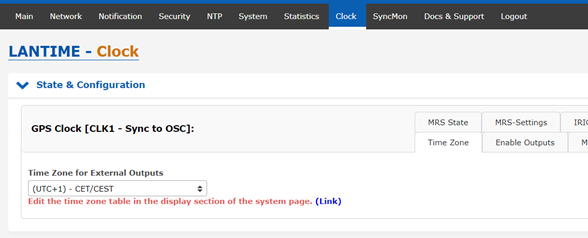
Aller dans Clock / State &amp; Configuration / Timezone  
Définir le paramètre sur UTC 0 / UTC  
[![image.png](https://cavallone.fr/uploads/images/gallery/2024-11/scaled-1680-/qBe24VvwTFJdG9La-image.png)](https://cavallone.fr/uploads/images/gallery/2024-11/qBe24VvwTFJdG9La-image.png)  
  
   
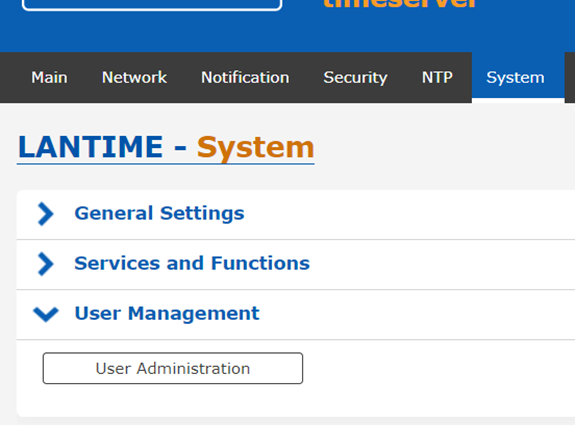
Pour modifier l’utilisateur et son mot de passe aller dans System / User Management puis cliquer sur User Administration[![image.png](https://cavallone.fr/uploads/images/gallery/2024-11/scaled-1680-/ifamEZGj2E0N4OLW-image.png)](https://cavallone.fr/uploads/images/gallery/2024-11/ifamEZGj2E0N4OLW-image.png)
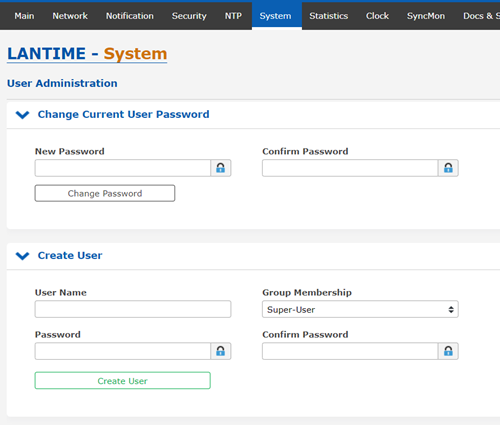
Changer le mot de passe par defaut du root et/ou créé un utilisateur[![image.png](https://cavallone.fr/uploads/images/gallery/2024-11/scaled-1680-/qszuNxJN78qzCM6i-image.png)](https://cavallone.fr/uploads/images/gallery/2024-11/qszuNxJN78qzCM6i-image.png)
#####   
  
  
<span style="color: rgb(45, 194, 107);">IMPORT CONFIG</span>  


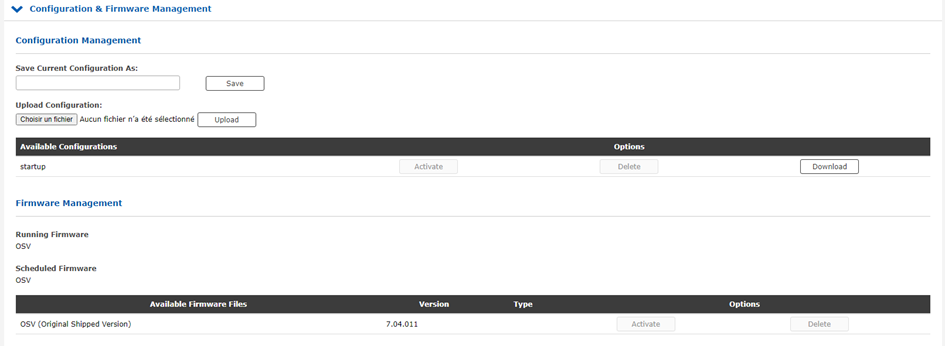
Allez dans système onglets Configuration &amp; Firmware Management  
[![image.png](https://cavallone.fr/uploads/images/gallery/2024-11/scaled-1680-/VB91uoN4h6nU9zLF-image.png)](https://cavallone.fr/uploads/images/gallery/2024-11/VB91uoN4h6nU9zLF-image.png)


Cliquer sur Choisir un fichier et sélectionner le tgz pour importer la config[![image.png](https://cavallone.fr/uploads/images/gallery/2024-11/scaled-1680-/uoiVcB0vGSjywQ3J-image.png)](https://cavallone.fr/uploads/images/gallery/2024-11/uoiVcB0vGSjywQ3J-image.png)

  
Une fois sélectionner appuyer sur Upload, le fichier devrait apparaitre dans les configurations available puis appuyer sur activate pour charger la configuration  
[![image.png](https://cavallone.fr/uploads/images/gallery/2024-11/scaled-1680-/AJxvJz0Qunz4pvNI-image.png)](https://cavallone.fr/uploads/images/gallery/2024-11/AJxvJz0Qunz4pvNI-image.png)

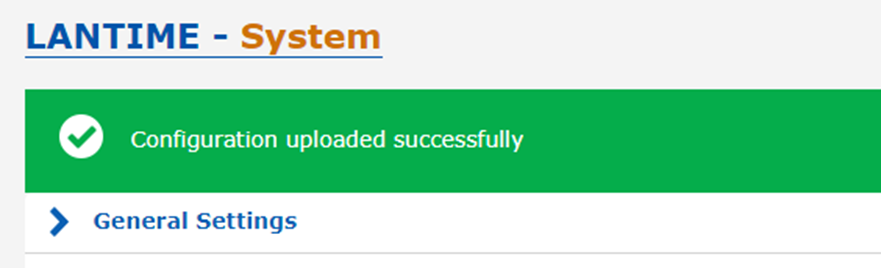
Une fois la configuration chargée le message suivant devrait apparaitre[![image.png](https://cavallone.fr/uploads/images/gallery/2024-11/scaled-1680-/U2pVi1fYoWCXog1h-image.png)](https://cavallone.fr/uploads/images/gallery/2024-11/U2pVi1fYoWCXog1h-image.png)

#### <span style="color: rgb(45, 194, 107);">Réinitialisation du NTP</span>  


Allez dans System / Services and Functions puis cliquer sur Reset Factory Defaults

[![image.png](https://cavallone.fr/uploads/images/gallery/2024-11/scaled-1680-/ajAlN4kejjBZ5zPo-image.png)](https://cavallone.fr/uploads/images/gallery/2024-11/ajAlN4kejjBZ5zPo-image.png)
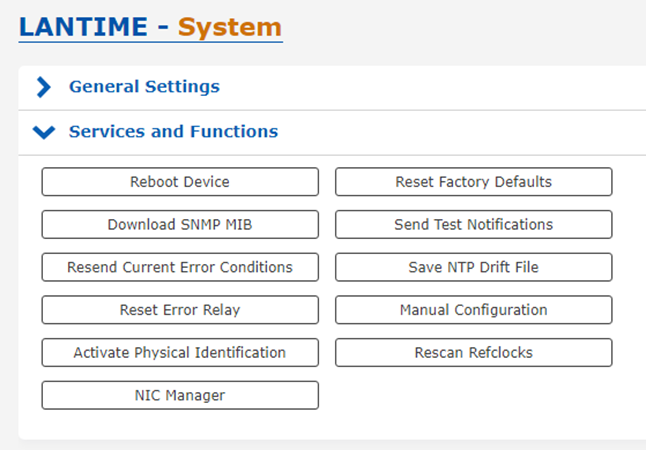
  
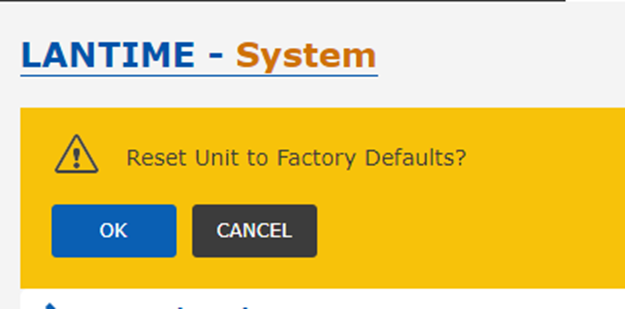
Le message suivant apparait appuyer sur OK le ntp execute sa réinitialisation

[![image.png](https://cavallone.fr/uploads/images/gallery/2024-11/scaled-1680-/0VRwjJqBPiImc6f3-image.png)](https://cavallone.fr/uploads/images/gallery/2024-11/0VRwjJqBPiImc6f3-image.png)
# FIREWALL


# Modification host SQUID

Se connecter au serveur squid :

Une fois connecté modifier le fichier contenant les host server

```bash
sudo su
nano /etc/squid/host_list/GRP_Linux_Servers
```

[![hostlist.PNG](https://cavallone.fr/uploads/images/gallery/2025-07/scaled-1680-/fOrkkH1pOqkBjpec-hostlist.PNG)](https://cavallone.fr/uploads/images/gallery/2025-07/fOrkkH1pOqkBjpec-hostlist.PNG)

Ajouter ensuite l'@IP comme ci-dessous dans le fichier

[![host ip.PNG](https://cavallone.fr/uploads/images/gallery/2025-07/scaled-1680-/U47hTSogktWe7jmD-host-ip.PNG)](https://cavallone.fr/uploads/images/gallery/2025-07/U47hTSogktWe7jmD-host-ip.PNG)

une fois le fichier quitter et enregistrer , exécuter la commande suivante :

```bash
squid -k reconfigure
```

[![reconfigure.PNG](https://cavallone.fr/uploads/images/gallery/2025-07/scaled-1680-/lUOhbV6QmV2q9NUt-reconfigure.PNG)](https://cavallone.fr/uploads/images/gallery/2025-07/lUOhbV6QmV2q9NUt-reconfigure.PNG)

Vous verrez la liste des ip apparaître comme suivant

[![application.PNG](https://cavallone.fr/uploads/images/gallery/2025-07/scaled-1680-/iCfXhGMmngYOAloL-application.PNG)](https://cavallone.fr/uploads/images/gallery/2025-07/iCfXhGMmngYOAloL-application.PNG)

Tester si le serveur peut maintenant passer à travers le proxy.

# Modification Url Squid

Se connecter au serveur squid :

Une fois connecté modifier le fichier contenant les host server

```bash
sudo su
nano /etc/squid/White_liste/Update_Redhat_Centos
```

[![hostlist.PNG](https://cavallone.fr/uploads/images/gallery/2025-07/scaled-1680-/fOrkkH1pOqkBjpec-hostlist.PNG)](https://cavallone.fr/uploads/images/gallery/2025-07/fOrkkH1pOqkBjpec-hostlist.PNG)

Ajouter ensuite l'url comme ci-dessous dans le fichier

[![modification du fichier.PNG](https://cavallone.fr/uploads/images/gallery/2025-07/scaled-1680-/Rq4arszoDJVhNxYY-modification-du-fichier.PNG)](https://cavallone.fr/uploads/images/gallery/2025-07/Rq4arszoDJVhNxYY-modification-du-fichier.PNG)

une fois le fichier quitter et enregistrer , exécuter la commande suivante :

```bash
squid -k reconfigure
```

[![reconfigure.PNG](https://cavallone.fr/uploads/images/gallery/2025-07/scaled-1680-/lUOhbV6QmV2q9NUt-reconfigure.PNG)](https://cavallone.fr/uploads/images/gallery/2025-07/lUOhbV6QmV2q9NUt-reconfigure.PNG)

Vous verrez la liste des IP apparaître comme suivant

[![application.PNG](https://cavallone.fr/uploads/images/gallery/2025-07/scaled-1680-/iCfXhGMmngYOAloL-application.PNG)](https://cavallone.fr/uploads/images/gallery/2025-07/iCfXhGMmngYOAloL-application.PNG)

Tester si le serveur peut maintenant acceder à l'url.

# Stormshield modification d'une règle

Se connecter au STORMSHIELD et aller dans POLITIQUE DE SECURITE

[![Politique de securite.PNG](https://cavallone.fr/uploads/images/gallery/2025-07/scaled-1680-/pKccZOIXvBWacmPb-politique-de-securite.PNG)](https://cavallone.fr/uploads/images/gallery/2025-07/pKccZOIXvBWacmPb-politique-de-securite.PNG)
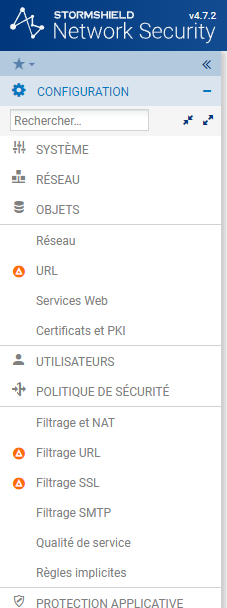
Créer / chercher la règle à modifier dans la barre

[![Filtrage NAT.PNG](https://cavallone.fr/uploads/images/gallery/2025-07/scaled-1680-/gjYg3wEouPQxX1RL-filtrage-nat.PNG)](https://cavallone.fr/uploads/images/gallery/2025-07/gjYg3wEouPQxX1RL-filtrage-nat.PNG)

Sélectionner la règle à modifier et faire éditer

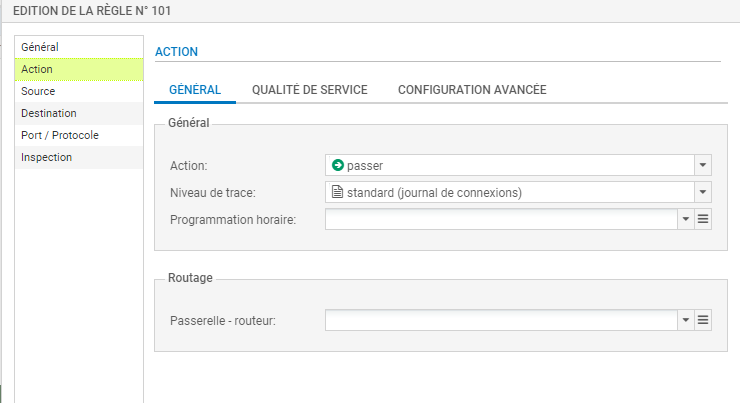
Nous allons laisser passer le flux dans celle-ci, donc nous allons choisir <span style="background-color: rgb(241, 196, 15);">**<span style="color: rgb(224, 62, 45);">PASSER</span>** </span>dans actions

[![blocage ou passer.PNG](https://cavallone.fr/uploads/images/gallery/2025-07/scaled-1680-/zQgRmlS6uD35c1RW-blocage-ou-passer.PNG)](https://cavallone.fr/uploads/images/gallery/2025-07/zQgRmlS6uD35c1RW-blocage-ou-passer.PNG)

Ajoutons les machines/groupes sources

[![source.PNG](https://cavallone.fr/uploads/images/gallery/2025-07/scaled-1680-/Zmk6E5Ey8eCBZVvl-source.PNG)](https://cavallone.fr/uploads/images/gallery/2025-07/Zmk6E5Ey8eCBZVvl-source.PNG)
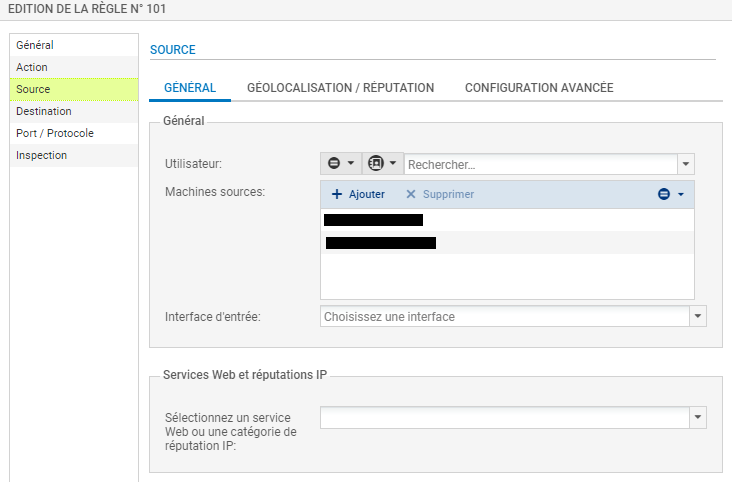
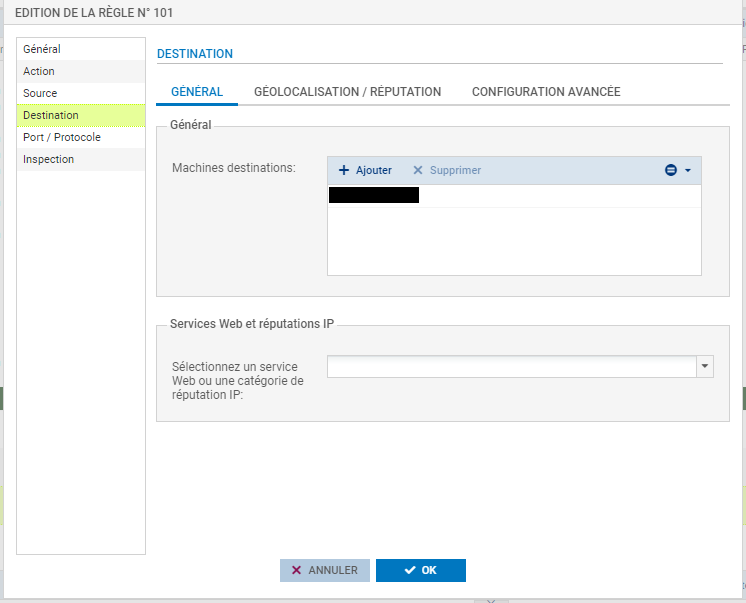
Nous devons maintenant ajouter les machines de destination, faire <span style="background-color: rgb(241, 196, 15); color: rgb(224, 62, 45);">**AJOUTER**</span> et rentrer <span style="color: rgb(224, 62, 45); background-color: rgb(241, 196, 15);">**l'@IP**</span> ou le <span style="color: rgb(224, 62, 45); background-color: rgb(241, 196, 15);">**NOM**</span> déjà créé dans les <span style="background-color: rgb(241, 196, 15); color: rgb(224, 62, 45);">**OBJETS**</span> du Stormshield

[![editer la regle (ip_objet).PNG](https://cavallone.fr/uploads/images/gallery/2025-07/scaled-1680-/wWFxXnzxLP5s40tH-editer-la-regle-ip-objet.PNG)](https://cavallone.fr/uploads/images/gallery/2025-07/wWFxXnzxLP5s40tH-editer-la-regle-ip-objet.PNG)

Maintenant ajoutons le port que nous souhaitons laisser passer

[![port.PNG](https://cavallone.fr/uploads/images/gallery/2025-07/scaled-1680-/oM7jYh4semFvvQrH-port.PNG)](https://cavallone.fr/uploads/images/gallery/2025-07/oM7jYh4semFvvQrH-port.PNG)
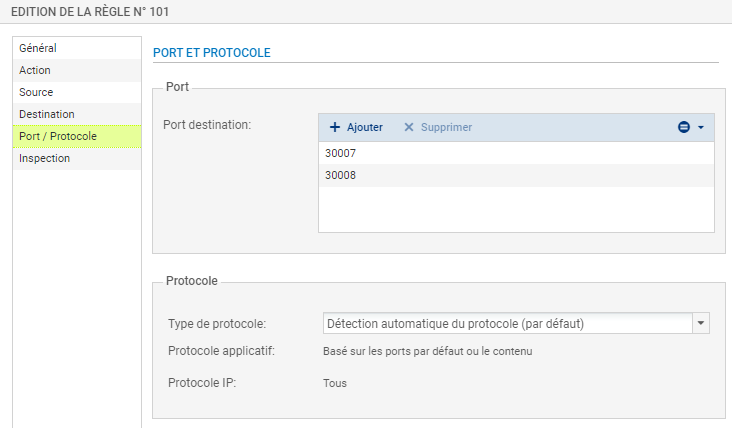
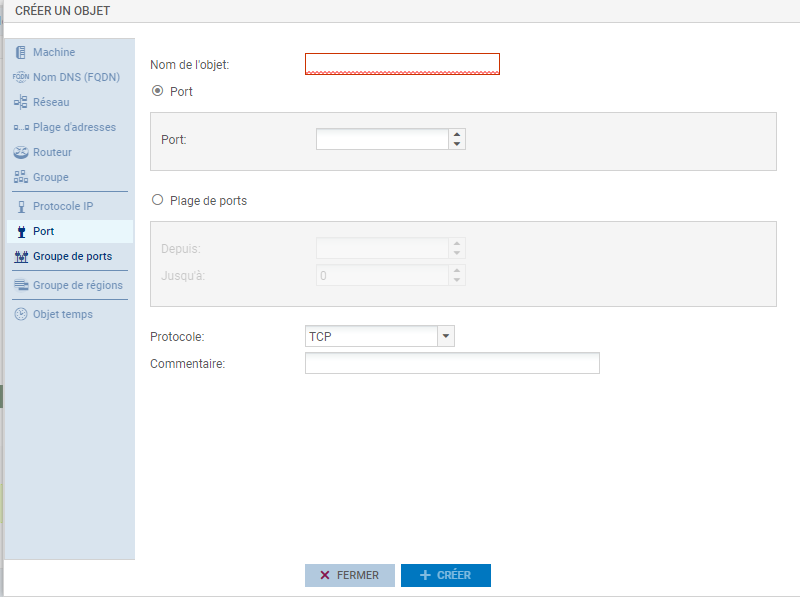
<p class="callout warning">**SI VOTRE OBJET N'EST PAS EXISTANT CREER LE DEPUIS LES 2 PETITES BARRES DANS AJOUTER ET REMPLIR LA FENÊTRE CI DESSOUS**</p>

[![objet port.PNG](https://cavallone.fr/uploads/images/gallery/2025-07/scaled-1680-/syGHZAoAYamlGb5D-objet-port.PNG)](https://cavallone.fr/uploads/images/gallery/2025-07/syGHZAoAYamlGb5D-objet-port.PNG)

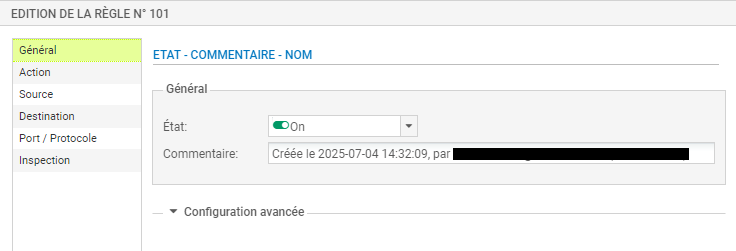
une fois celà fait, verifier que la règle est bien **<span style="background-color: rgb(241, 196, 15); color: rgb(224, 62, 45);">ON</span>**

[![on ou off.PNG](https://cavallone.fr/uploads/images/gallery/2025-07/scaled-1680-/4UcQeRUt0XT8Tm5N-on-ou-off.PNG)](https://cavallone.fr/uploads/images/gallery/2025-07/4UcQeRUt0XT8Tm5N-on-ou-off.PNG)

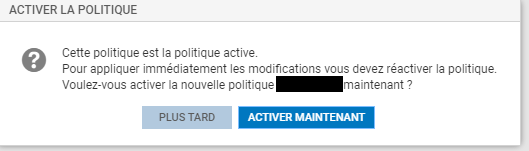
En faisant OK la fenêtre suivante apparaitra il ne vous reste plus qu'a activer celle-ci.

[![vx1k6VQSHbUw9y4i-4fduetb6tuegn70c-appliquer.png](https://cavallone.fr/uploads/images/gallery/2025-07/scaled-1680-/kjt0UBgC4bQceA69-vx1k6vqshbuw9y4i-4fduetb6tuegn70c-appliquer.png)](https://cavallone.fr/uploads/images/gallery/2025-07/kjt0UBgC4bQceA69-vx1k6vqshbuw9y4i-4fduetb6tuegn70c-appliquer.png)
# HPE


# Mise à jour des OS d’un switch HPE

1 – Connecter un PC portable sur le port console de l’équipement

2 – Remettre l’équipement en mode de configuration « usine » :

<span style="color: rgb(45, 194, 107);">undo startup saved-configuration</span>  
<span style="color: rgb(45, 194, 107);">delete startup.cfg</span>  
<span style="color: rgb(45, 194, 107);">Y</span>  
<span style="color: rgb(45, 194, 107);">delete lauth.dat</span>  
<span style="color: rgb(45, 194, 107);">Y</span>  
<span style="color: rgb(45, 194, 107);">reboot</span>  
<span style="color: rgb(45, 194, 107);">N</span>  
<span style="color: rgb(45, 194, 107);">Y</span>

3 – Vérifier la version logicielle active sur l’équipement  
<span style="color: rgb(45, 194, 107);">display version</span>

4 – Vérifier les versions logicielles autorisées sur l’équipement  
<span style="color: rgb(45, 194, 107);">display boot-loader</span>

5 – Si la version logicielle active est autorisée uniquement au seul emplacement « main » ou « backup » alors l’autoriser sur le 2ème emplacement

<span style="color: rgb(45, 194, 107);">boot-loader file boot flash:/5140ei-cmw710-boot-xxx.bin system flash:/5140ei-cmw710-system-xxx.bin slot 1 main</span>  
<span style="color: rgb(45, 194, 107);">Y</span>

ou

<span style="color: rgb(45, 194, 107);">boot-loader file boot flash:/5140ei-cmw710-boot-xxx.bin system flash:/5140ei-cmw710-system-xxx.bin slot 1 backup</span>  
<span style="color: rgb(45, 194, 107);">Y</span>

6 – Si la version logicielle active ne correspond pas à la version « cible » alors configurer le serveur SFTP sur l’équipement

<span style="color: rgb(45, 194, 107);">system-view</span>  
<span style="color: rgb(45, 194, 107);">public-key local create dsa</span>  
<span style="color: rgb(45, 194, 107);">y</span>  
<span style="color: rgb(45, 194, 107);">2048</span>  
<span style="color: rgb(45, 194, 107);">public-key local create rsa</span>  
<span style="color: rgb(45, 194, 107);">y</span>  
<span style="color: rgb(45, 194, 107);">2048</span>

<span style="color: rgb(45, 194, 107);">interface vlan-interface 1</span>  
<span style="color: rgb(45, 194, 107);">ip address (adresse ip) (mask)</span>  
<span style="color: rgb(45, 194, 107);">undo shutdown</span>

<span style="color: rgb(45, 194, 107);">local-user LOGIN class manage</span>  
<span style="color: rgb(45, 194, 107);"> authorization-attribute user-role network-admin</span>  
<span style="color: rgb(45, 194, 107);"> undo authorization-attribute user-role network-operator</span>  
<span style="color: rgb(45, 194, 107);"> password simple PASSWORD</span>  
<span style="color: rgb(45, 194, 107);"> service-type ssh</span>  
<span style="color: rgb(45, 194, 107);"> state active</span>

<span style="color: rgb(45, 194, 107);">domain system</span>  
<span style="color: rgb(45, 194, 107);">accounting default none</span>  
<span style="color: rgb(45, 194, 107);">authentication default local</span>  
<span style="color: rgb(45, 194, 107);">authorization default local</span>  
<span style="color: rgb(45, 194, 107);">undo authorization-attribute user-profile</span>  
<span style="color: rgb(45, 194, 107);">state active</span>

<span style="color: rgb(45, 194, 107);">user-group system</span>  
<span style="color: rgb(45, 194, 107);">ssh server enable</span>  
<span style="color: rgb(45, 194, 107);">ssh server authentication-retries 3</span>  
<span style="color: rgb(45, 194, 107);">ssh server authentication-timeout 60</span>  
<span style="color: rgb(45, 194, 107);">Undo ssh server compatible-ssh1x</span>  
<span style="color: rgb(45, 194, 107);">undo ssh server port</span>

<span style="color: rgb(45, 194, 107);">undo scp server enable</span>  
<span style="color: rgb(45, 194, 107);">sftp server enable</span>  
<span style="color: rgb(45, 194, 107);">sftp server idle-timeout 5</span>  
<span style="color: rgb(45, 194, 107);">ssh user LOGIN service-type all authentication-type password</span>

<span style="color: rgb(45, 194, 107);">line vty 0 63</span>  
<span style="color: rgb(45, 194, 107);">authentication-mode scheme</span>  
<span style="color: rgb(45, 194, 107);">idle-timeout 5 0</span>  
<span style="color: rgb(45, 194, 107);">protocol inbound ssh</span>

<span style="color: rgb(45, 194, 107);">return</span>

7 – Connecter le PC portable sur un port de l’équipement

8 – Initialiser une session SFTP entre le PC portable (Client) et l’équipement (Serveur)  
Remarque : Si le client SFTP utilisé est WinSCP alors sélectionner Options/Préférences/Solidité et déactiver « Autoriser la reprise/transférer vers un fichier temporaire pour » puis cliquer sur OK

9 – Transférer, via le client SFTP, la version logicielle dans la flash de l’équipement au niveau de la « racine »

10 – Vérifier les versions logicielles contenues dans la flash de l’équipement

<span style="color: rgb(45, 194, 107);">dir flash:/</span>

11 – Autoriser la version logicielle téléchargée à l’emplacement « main »

<span style="color: rgb(45, 194, 107);">boot-loader file flash:/5140ei-CMW710-xxx.ipe slot 1 main</span>  
<span style="color: rgb(45, 194, 107);">Y</span>  
<span style="color: rgb(45, 194, 107);">Y</span>

12 – Redémarrer l’équipement sur la version logicielle téléchargée

<span style="color: rgb(45, 194, 107);">reboot</span>  
<span style="color: rgb(45, 194, 107);">N</span>  
<span style="color: rgb(45, 194, 107);">Y</span>

13 – Vérifier la version logicielle active

<span style="color: rgb(45, 194, 107);">display version</span>

14 – Autoriser la version logicielle téléchargée à l’emplacement « backup »

<span style="color: rgb(45, 194, 107);">boot-loader file boot flash:/5140ei-cmw710-boot-xxx.bin system flash:/5140ei-cmw710-system-xxx.bin slot 1 backup</span>  
<span style="color: rgb(45, 194, 107);">Y</span>

15 – Supprimer les versions logicielles non utilisées contenues dans la flash de l’équipement

<span style="color: rgb(45, 194, 107);">delete flash:/5140ei-cmw710-boot-xxx.bin</span>  
<span style="color: rgb(45, 194, 107);">Y</span>  
<span style="color: rgb(45, 194, 107);">delete flash:/5140ei-cmw710-system-xxx.bin</span>  
<span style="color: rgb(45, 194, 107);">Y</span>

# CISCO


# Commandes

<span style="color: rgb(45, 194, 107);">Enregistrer la configuration active</span>  
<span style="color: rgb(230, 126, 35);"> write</span>

<span style="color: rgb(45, 194, 107);">Afficher la configuration active</span>  
<span style="color: rgb(230, 126, 35);"> show running-config</span>

<span style="color: rgb(45, 194, 107);">Informations matériels du switch</span>  
<span style="color: rgb(230, 126, 35);"> show version</span>

<span style="color: rgb(45, 194, 107);">Découvrir les équipements connectés</span>  
<span style="color: rgb(230, 126, 35);"> show cdp neighbors</span>

<span style="color: rgb(45, 194, 107);">Afficher les informations des PoE</span>  
<span style="color: rgb(230, 126, 35);"> show power inline</span>

<span style="color: rgb(45, 194, 107);">Afficher les différents TRUNK</span>  
<span style="color: rgb(230, 126, 35);"> show interfaces trunk</span>

<span style="color: rgb(45, 194, 107);">Afficher le détail des VLANs</span>  
<span style="color: rgb(230, 126, 35);"> show vlan</span>

<span style="color: rgb(45, 194, 107);">Créer un VLAN</span>  
<span style="color: rgb(230, 126, 35);">enable</span>  
<span style="color: rgb(230, 126, 35);">conf t </span>  
<span style="color: rgb(230, 126, 35);">vlan 2</span>  
<span style="color: rgb(230, 126, 35);">vlan 2</span>

<span style="color: rgb(45, 194, 107);">Supprimer un VLAN</span>  
<span style="color: rgb(230, 126, 35);">enable</span>  
<span style="color: rgb(230, 126, 35);">conf t </span>  
<span style="color: rgb(230, 126, 35);">vlan 2</span>  
<span style="color: rgb(230, 126, 35);">no vlan 2</span>

<span style="color: rgb(45, 194, 107);">Réinitialiser par défaut une interface</span>  
<span style="color: rgb(230, 126, 35);">enable </span>  
<span style="color: rgb(230, 126, 35);">conf t</span>  
<span style="color: rgb(230, 126, 35);">default interface range GigabitEthernet1/0/1 - 48</span>  
   
<span style="color: rgb(45, 194, 107);">Création d'un teaming LACP</span>  
  
<span style="color: rgb(230, 126, 35);">enable </span>  
<span style="color: rgb(230, 126, 35);">conf t </span>  
<span style="color: rgb(230, 126, 35);">interface range GigabitEthernet1/0/1 - 2 </span>  
<span style="color: rgb(230, 126, 35);">channel-group 1 mode active </span>  
<span style="color: rgb(230, 126, 35);">channel-protocol lacp </span>  
<span style="color: rgb(230, 126, 35);">exit</span>  
  
<span style="color: rgb(230, 126, 35);">enable</span>  
<span style="color: rgb(230, 126, 35);">configure terminal </span>  
<span style="color: rgb(230, 126, 35);">interface port-channel 1 </span>  
<span style="color: rgb(230, 126, 35);">switchport trunk encapsulation dot1q </span>  
<span style="color: rgb(230, 126, 35);">switchport mode trunk </span>  
<span style="color: rgb(230, 126, 35);">switchport trunk allowed vlan add 1 </span>  
<span style="color: rgb(230, 126, 35);">exit</span>

<span style="color: rgb(45, 194, 107);">Statut de toutes les interfaces</span>  
<span style="color: rgb(230, 126, 35);"> enable </span>  
<span style="color: rgb(230, 126, 35);"> show interfaces status</span>

<span style="color: rgb(45, 194, 107);">statut d'une interface spécifique</span>  
<span style="color: rgb(230, 126, 35);"> enable</span>  
<span style="color: rgb(230, 126, 35);"> show interfaces Gi1/0/1 status</span>

<span style="color: rgb(45, 194, 107);">Désactiver une interface</span>  
<span style="color: rgb(230, 126, 35);">enable</span>  
<span style="color: rgb(230, 126, 35);">configure terminal</span>  
<span style="color: rgb(230, 126, 35);">interface gi1/0/1</span>  
<span style="color: rgb(230, 126, 35);">shutdown</span>  
<span style="color: rgb(230, 126, 35);">end</span>

<span style="color: rgb(45, 194, 107);">Modifier l'IP d'une interface  
</span><span style="color: rgb(230, 126, 35);">enable</span>  
<span style="color: rgb(230, 126, 35);">configure terminal</span>  
<span style="color: rgb(230, 126, 35);">interface Vlan3</span>  
<span style="color: rgb(230, 126, 35);">ip address 192.168.1.2 255.255.255.0</span>  
<span style="color: rgb(230, 126, 35);">exit</span>

<span style="color: rgb(45, 194, 107);">Ajouter une passerelle par défaut</span>  
<span style="color: rgb(230, 126, 35);">enable</span>  
<span style="color: rgb(230, 126, 35);">configure terminal</span>  
<span style="color: rgb(230, 126, 35);">ip default-gateway 10.0.0.60</span>

<span style="color: rgb(45, 194, 107);">Modifier un range de port</span>  
<span style="color: rgb(230, 126, 35);">enable</span>  
<span style="color: rgb(230, 126, 35);">configure terminal </span>  
<span style="color: rgb(230, 126, 35);">interface range GigabitEthernet1/0/1 - 48</span>

  
<span style="color: rgb(45, 194, 107);">Activer une interface</span>  
<span style="color: rgb(230, 126, 35);">enable</span>  
<span style="color: rgb(230, 126, 35);">configure terminal</span>  
<span style="color: rgb(230, 126, 35);">interface gi1/0/1</span>  
<span style="color: rgb(230, 126, 35);">no shutdown</span>  
<span style="color: rgb(230, 126, 35);">end</span>

# Configurer le service SNMP

<span style="color: rgb(230, 126, 35);">enable</span>  
<span style="color: rgb(230, 126, 35);">configure terminal</span>  
<span style="color: rgb(230, 126, 35);">snmp-server community <span style="color: rgb(45, 194, 107);">"nom"</span></span>  
<span style="color: rgb(230, 126, 35);">snmp-server location <span style="color: rgb(45, 194, 107);">"localisation"</span></span>  
<span style="color: rgb(230, 126, 35);">snmp-server contact <span style="color: rgb(45, 194, 107);">"mail@mail.com"</span></span>  
<span style="color: rgb(230, 126, 35);">end</span>  
  
<span style="color: rgb(230, 126, 35);">write</span>

# Calcul Subnet Mask

Caclul s'effectuant en puissance de 2

Va jusqu’à /32 max

Pour exemple /27

32-27 = 5 &gt; 2 puissance 5 &gt; 32

Je retire 32 a 256  
Mon subnet est en 224